Chat Interface
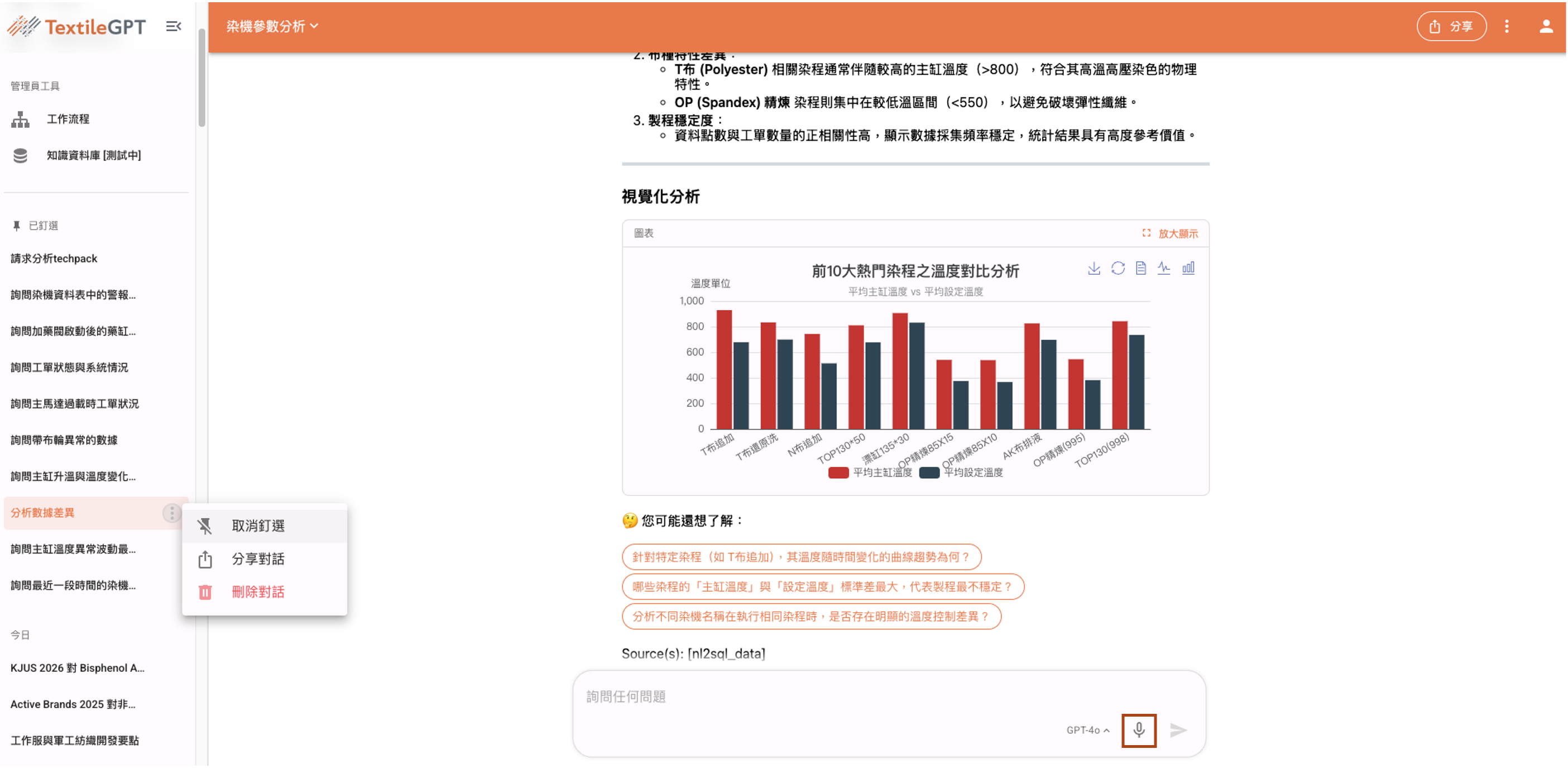
The hamburger menu on the left side of the chat interface displays the history. Users can pin, share, or delete specific conversations according to their preferences.
This platform also supports voice input. Simply click the microphone icon in the lower right corner of the chat box to convert speech into text and input it into the chat box.
Interactive Analytics Charts
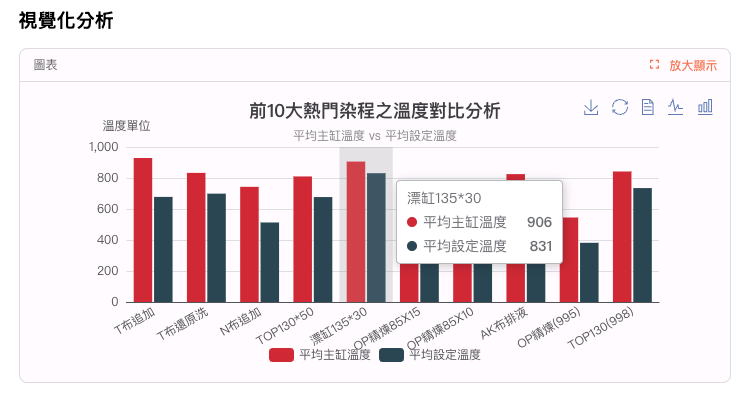
The various charts in the AI assistant's responses support different degrees of interactive retrieval. (The examples provided below do not limit the graphical displays the platform can call.)
Hovering your cursor over the chart allows you to view detailed information for that data point.
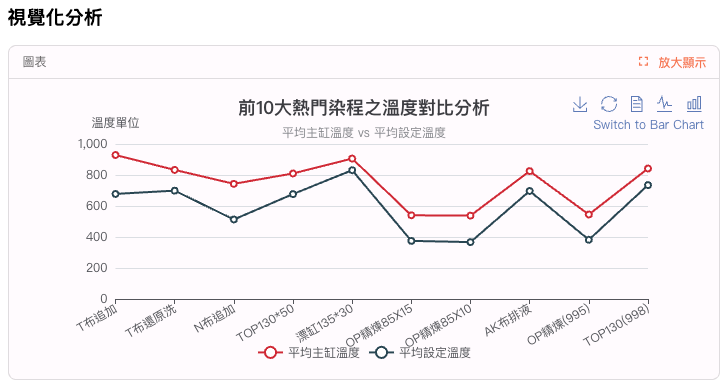
Hovering your cursor over the Switch to Line Chart icon in the upper right corner changes the chart to a line chart. If you need to download the image, click the Download icon in the upper right corner of the icon.
AI Assistant Feedback Mechanism
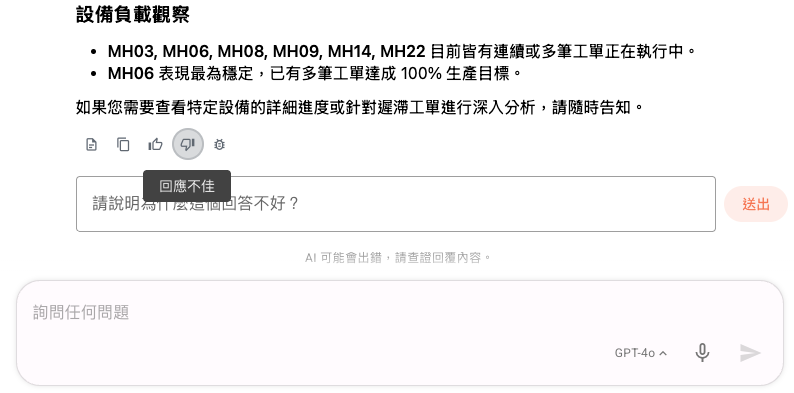
When the AI assistant finishes replying, users can provide feedback on the response via the 👍(Like) or 👎(Dislike) buttons at the bottom of the conversation.
After clicking 👎(Dislike), you can describe in text why the response was unsatisfactory, which helps optimize the AI assistant's performance.
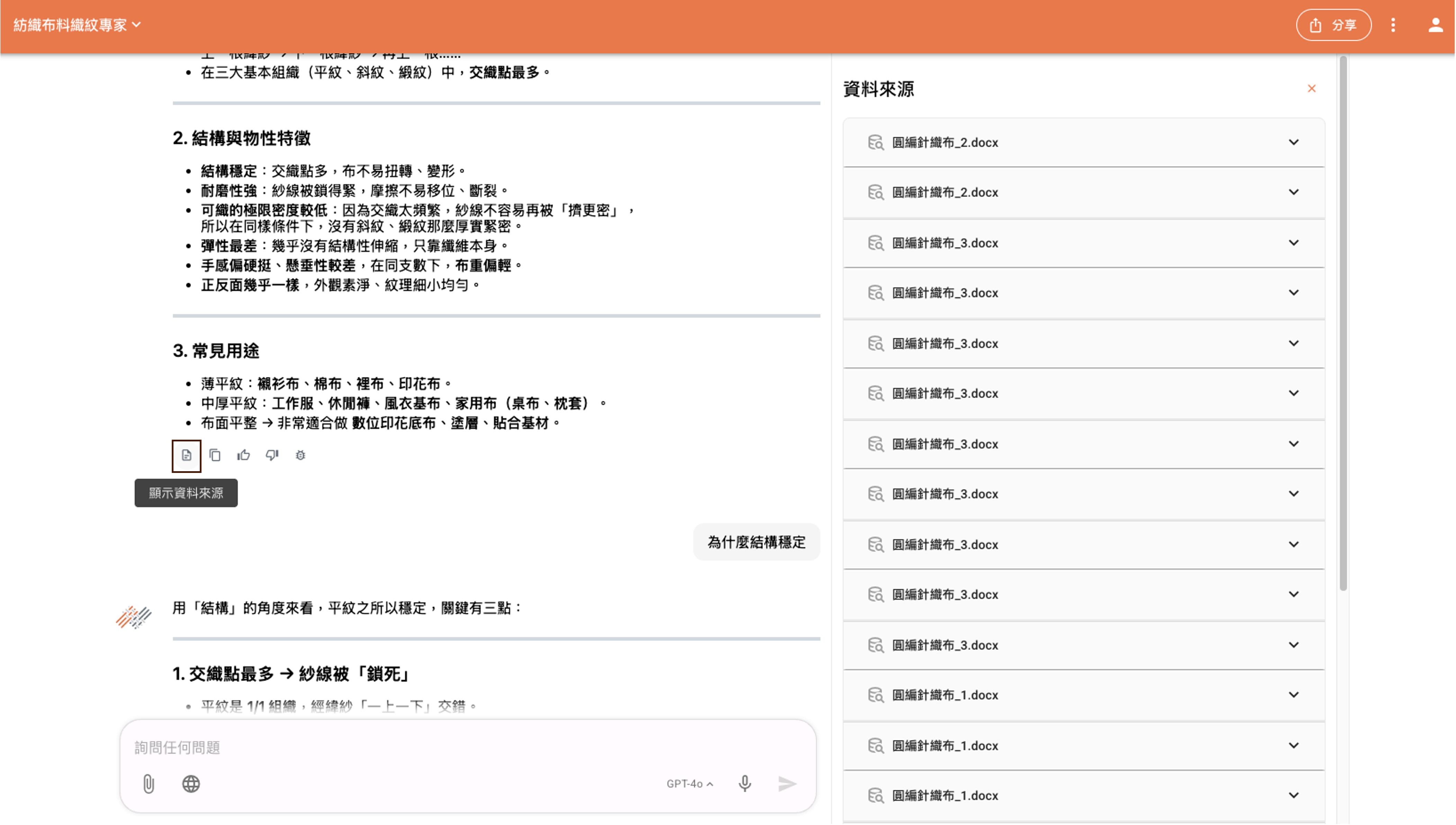
Data Sources
When the AI assistant finishes replying, users can click the Show Data Sources button at the bottom of the conversation. A window will pop up on the right side showing the file data sources and web search results related to the AI's reply. Clicking the drop-down list within the data sources expands the detailed content of that file.