Getting Started
Some features may be restricted depending on the account permission level. The left sidebar will display different items based on the account level.
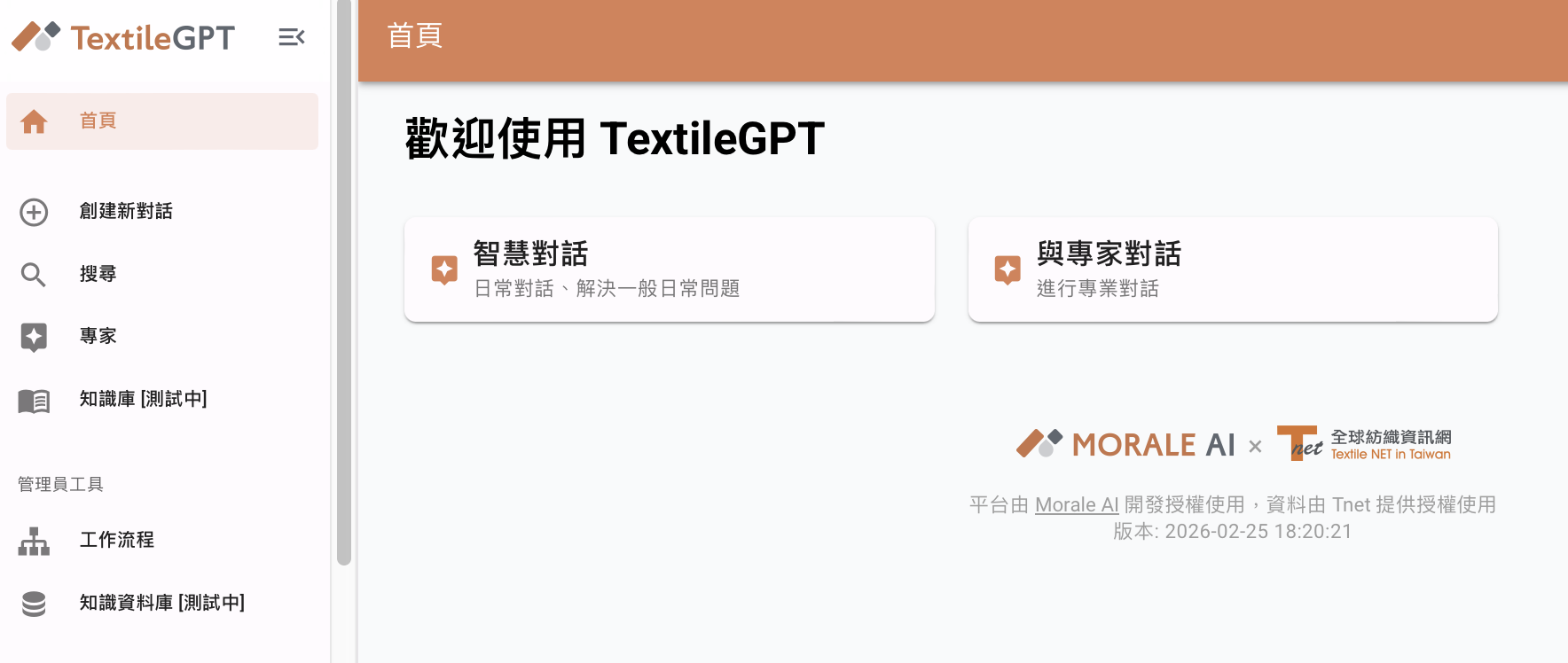
Switch Language
The platform supports multiple languages. Users can click the User icon at the top right corner of the platform homepage and switch languages in the language selection dropdown.
AI Assistant
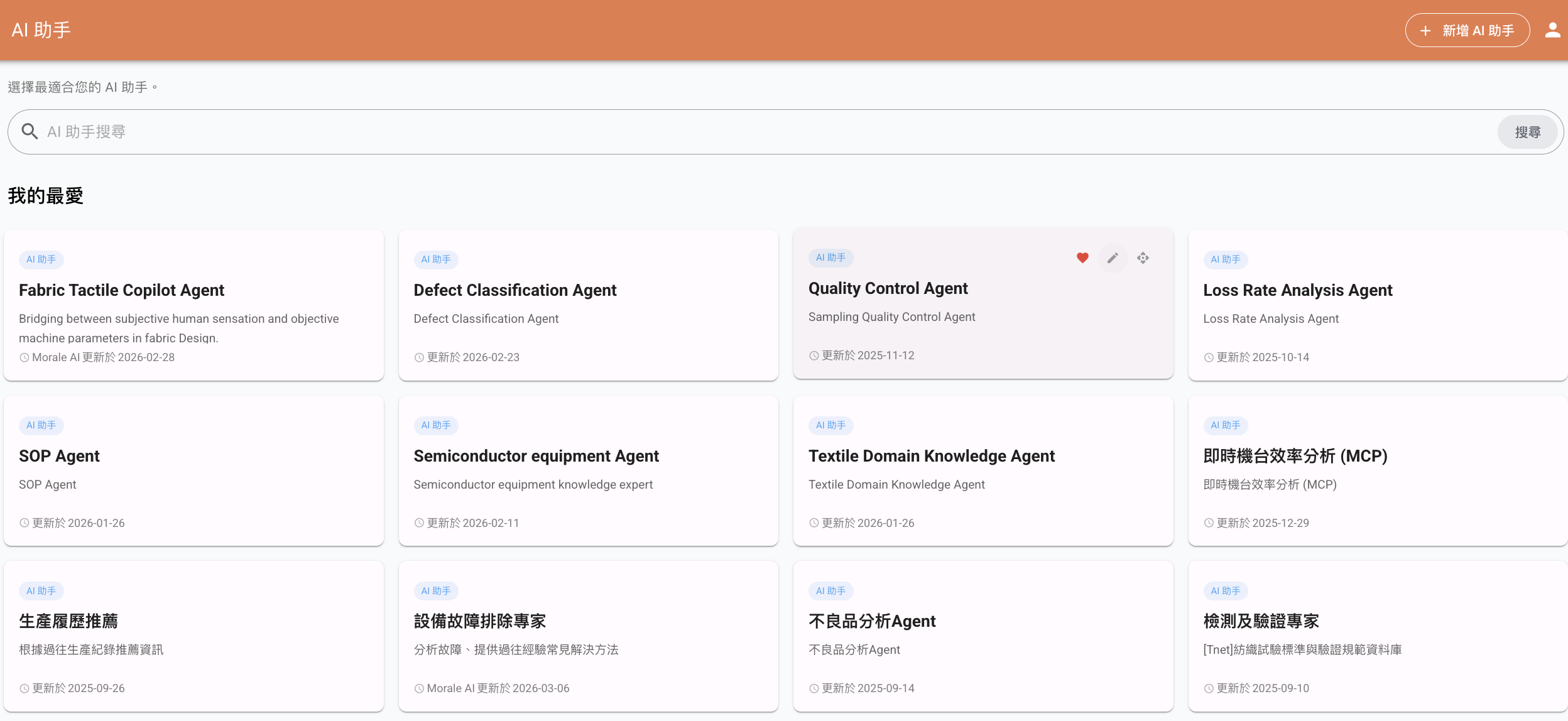
When Administrators and Super Administrators hover their mouse over any AI assistant in the AI assistant list, a Pencil icon will appear. Clicking it will enter the editing page.
Click Add AI Assistant in the upper right corner to create a new AI assistant.
Create AI Assistant
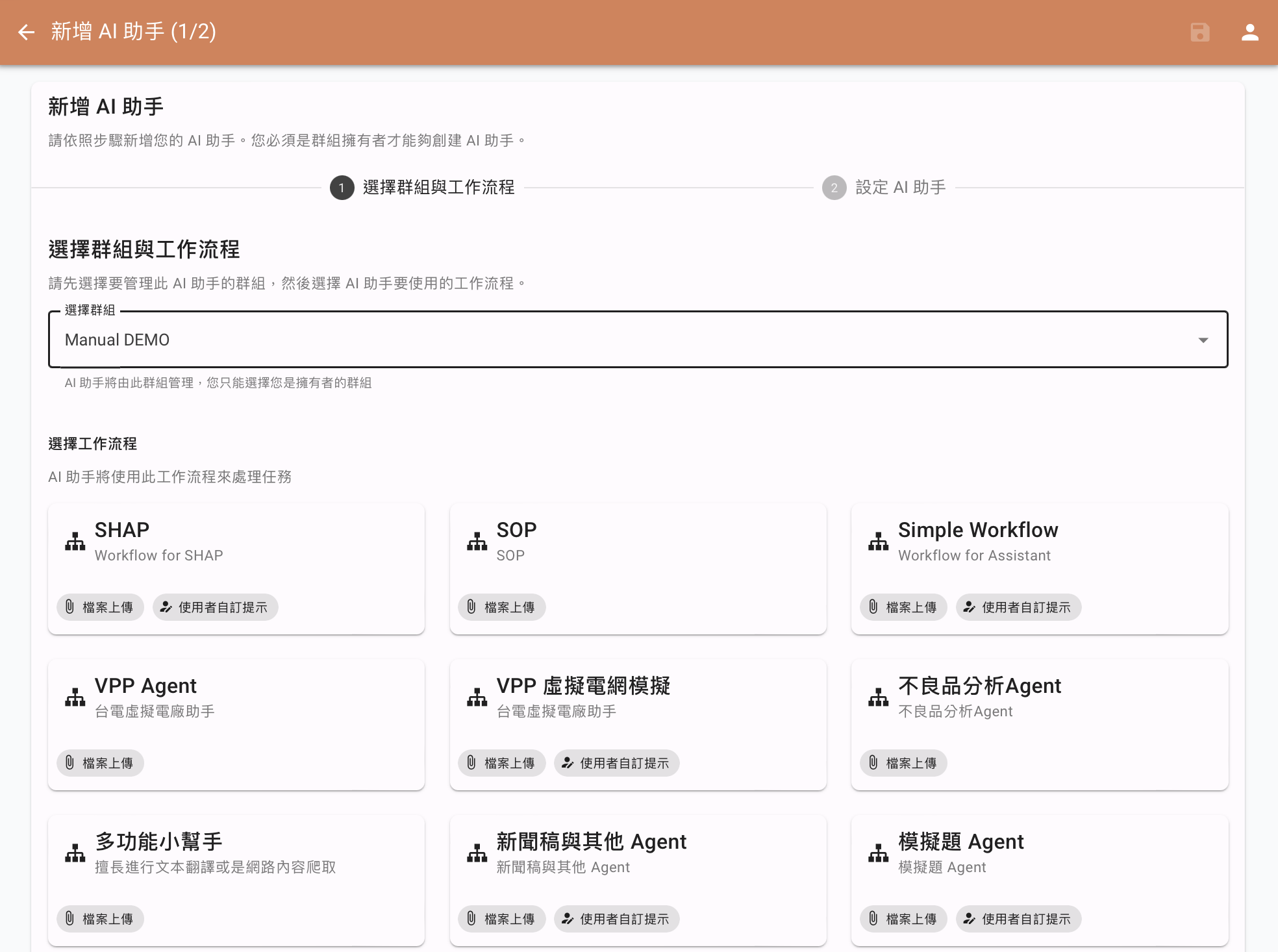
- Select the group that will use this AI assistant (Administrators of this group will have editing permissions for this AI assistant; General Users of this group will be able to use it).
- Select the corresponding workflow, then enter the Configure AI Assistant page.
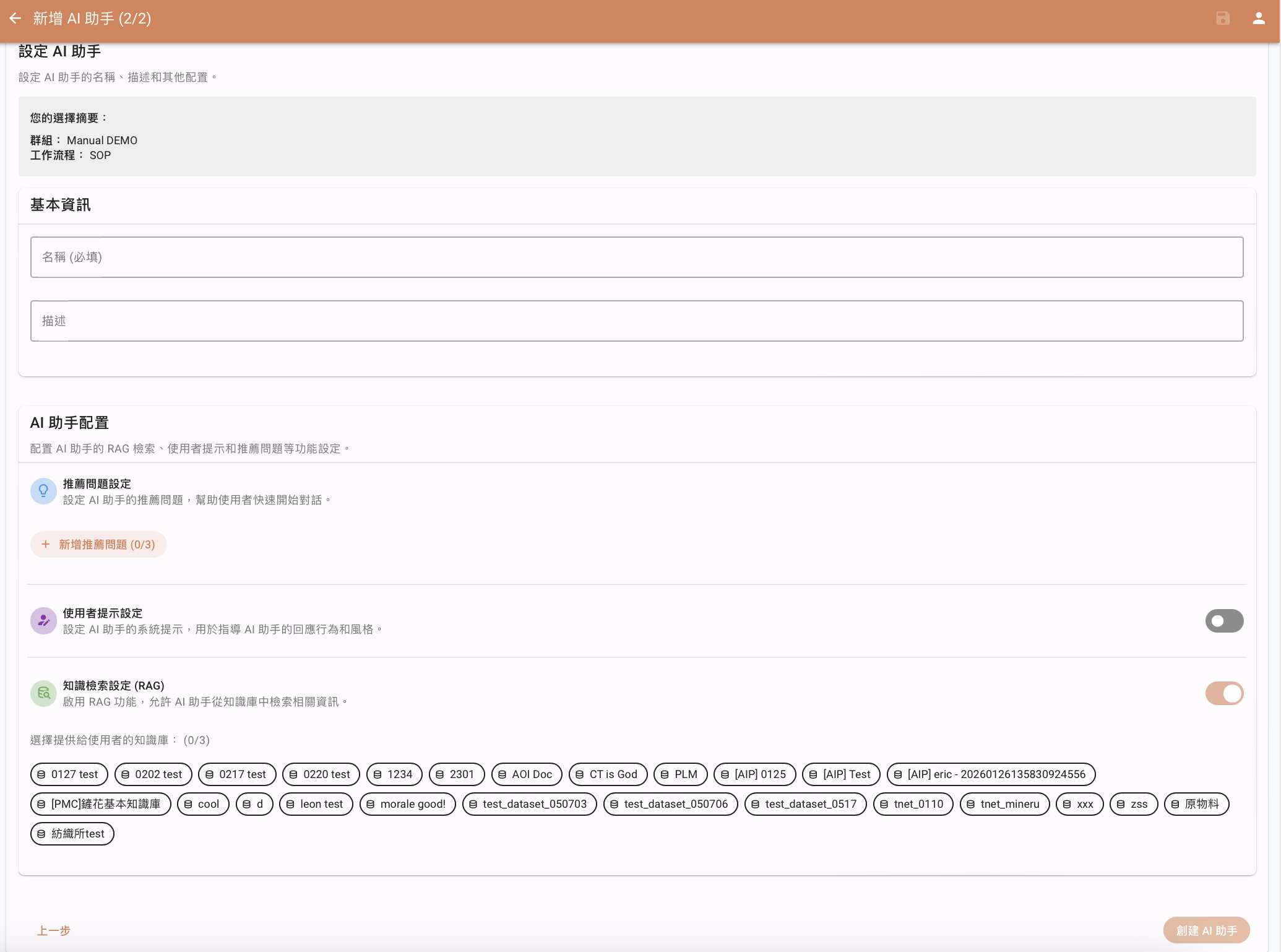
Configure AI Assistant
Recommended Questions Settings
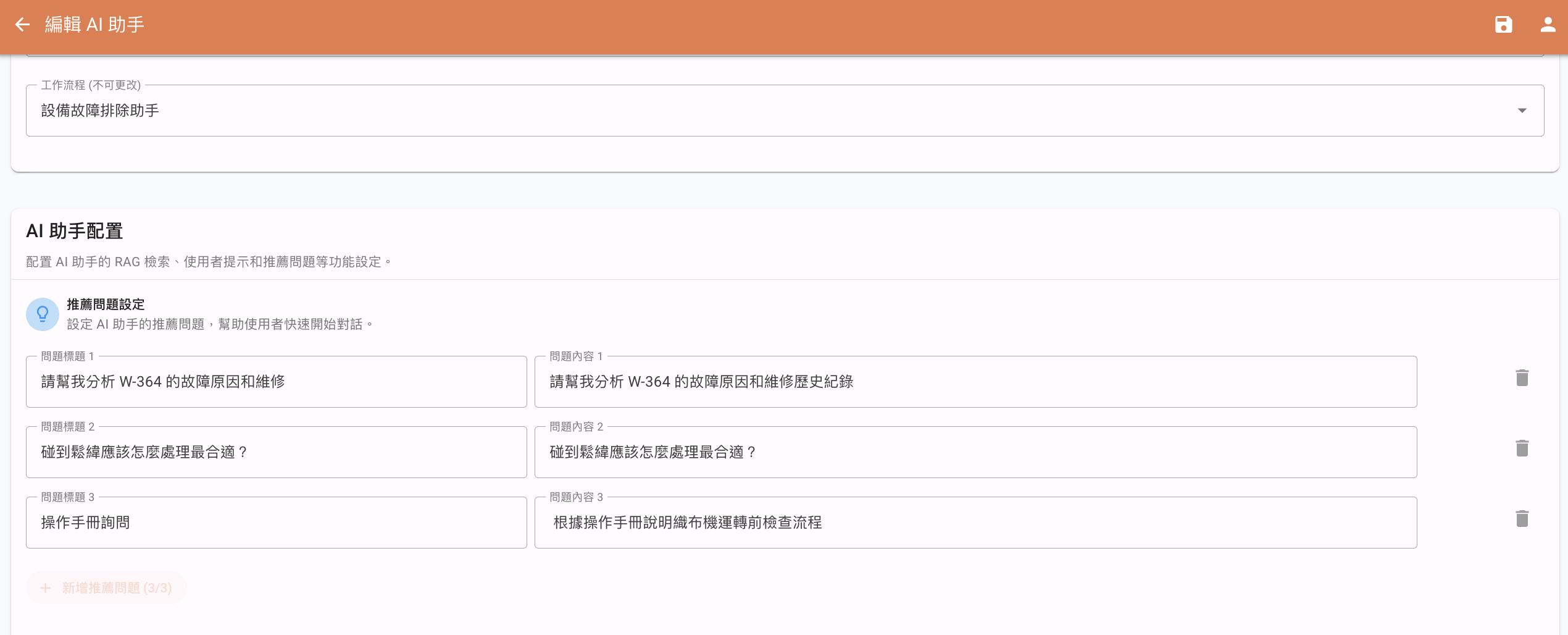
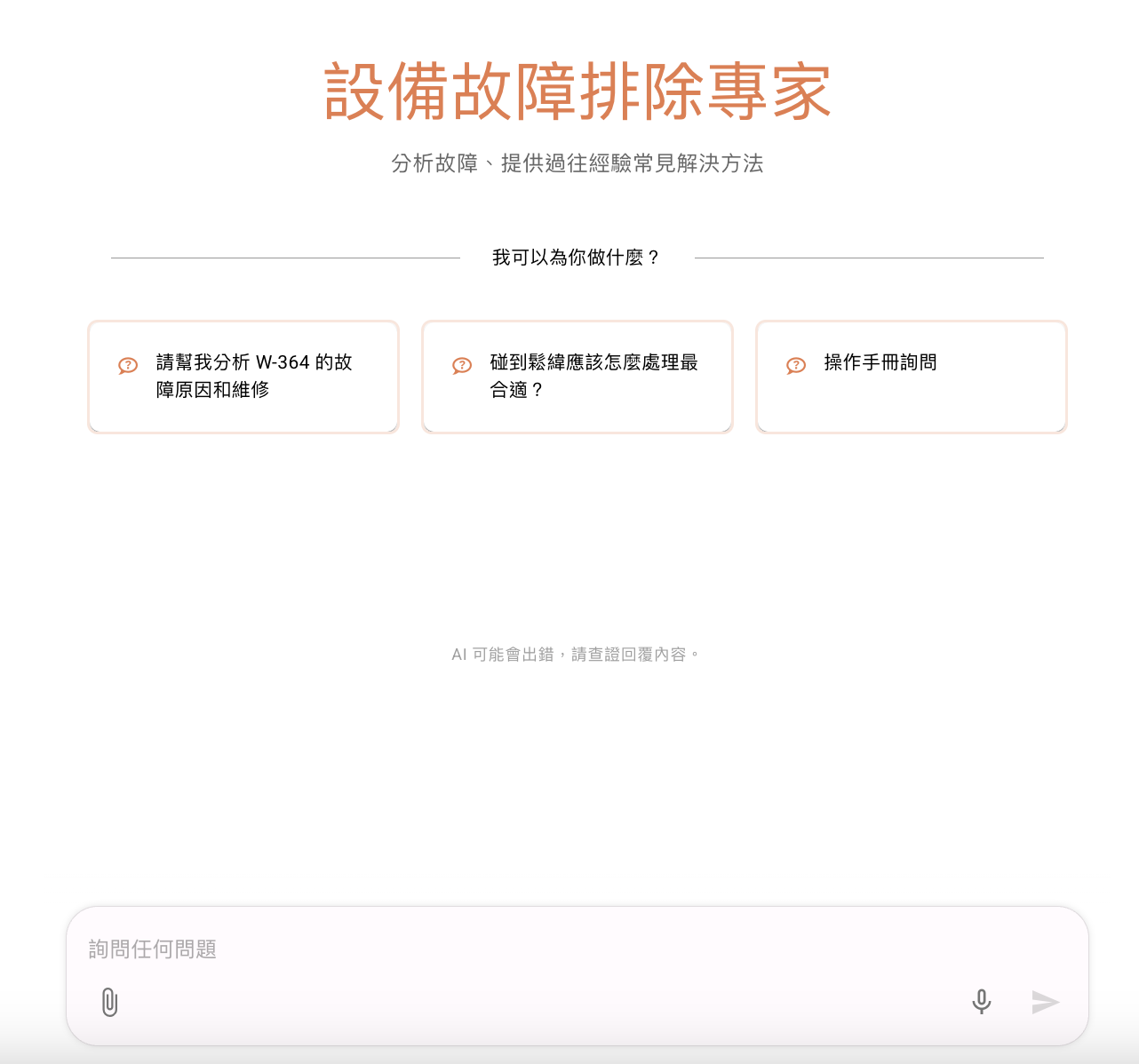
Under the AI Assistant configuration, you can customize three frequently asked questions. Once set, they will be displayed in the AI assistant's chat window as shown below:
User Prompt Settings
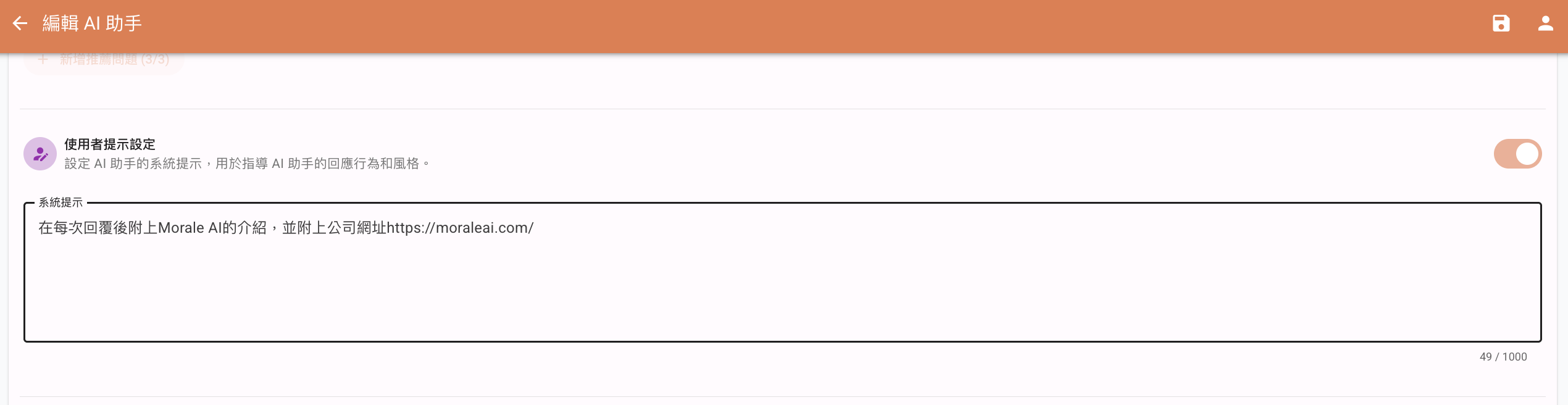
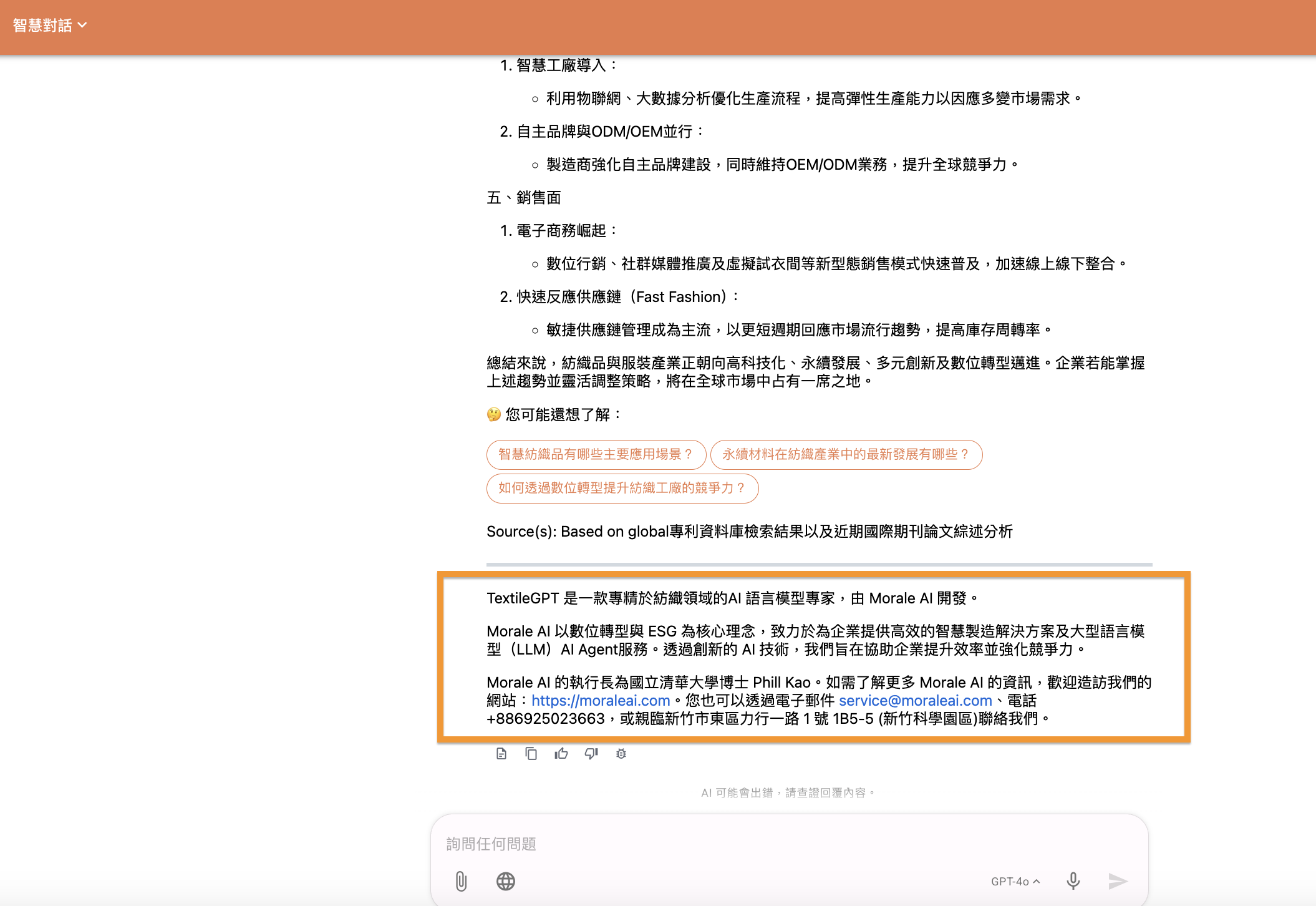
Users can set specific instructions for the AI Agent to follow when replying in the User Prompt Settings. Example: We want the AI Agent to attach the company's introduction and website link after each response. An actual example is shown below:
Knowledge Retrieval Settings (RAG)


Note: This feature can only be used if it is enabled in the workflow.
Once enabled, you can select up to three knowledge bases to use.
Edit AI Assistant
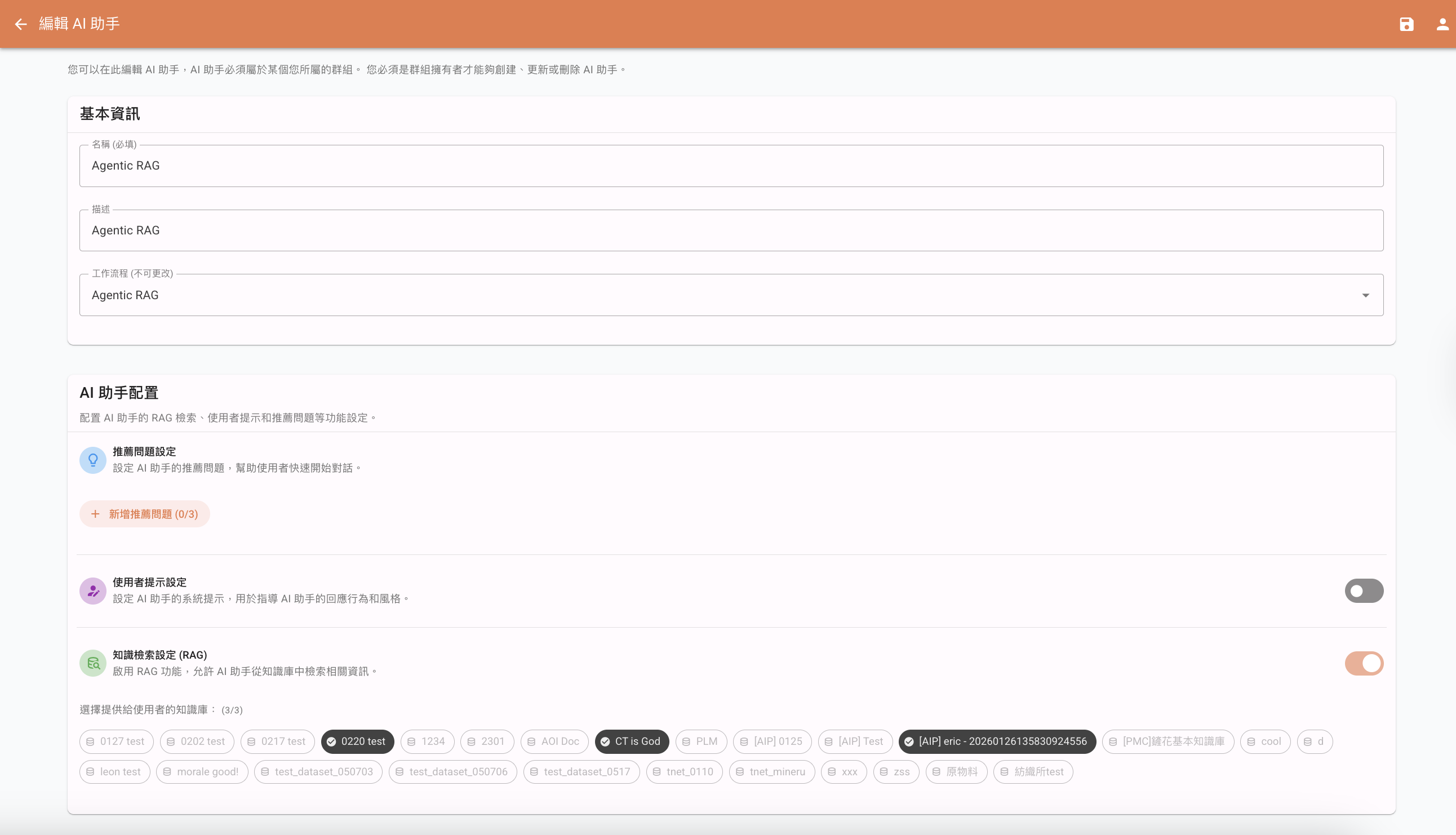
After entering the AI assistant editing page, you can edit the Basic Information and adjust the AI Assistant Configuration. The setup process is the same as the instructions in Create AI Assistant.