Platform Management
Click the User icon at the top right corner to open the platform management page.
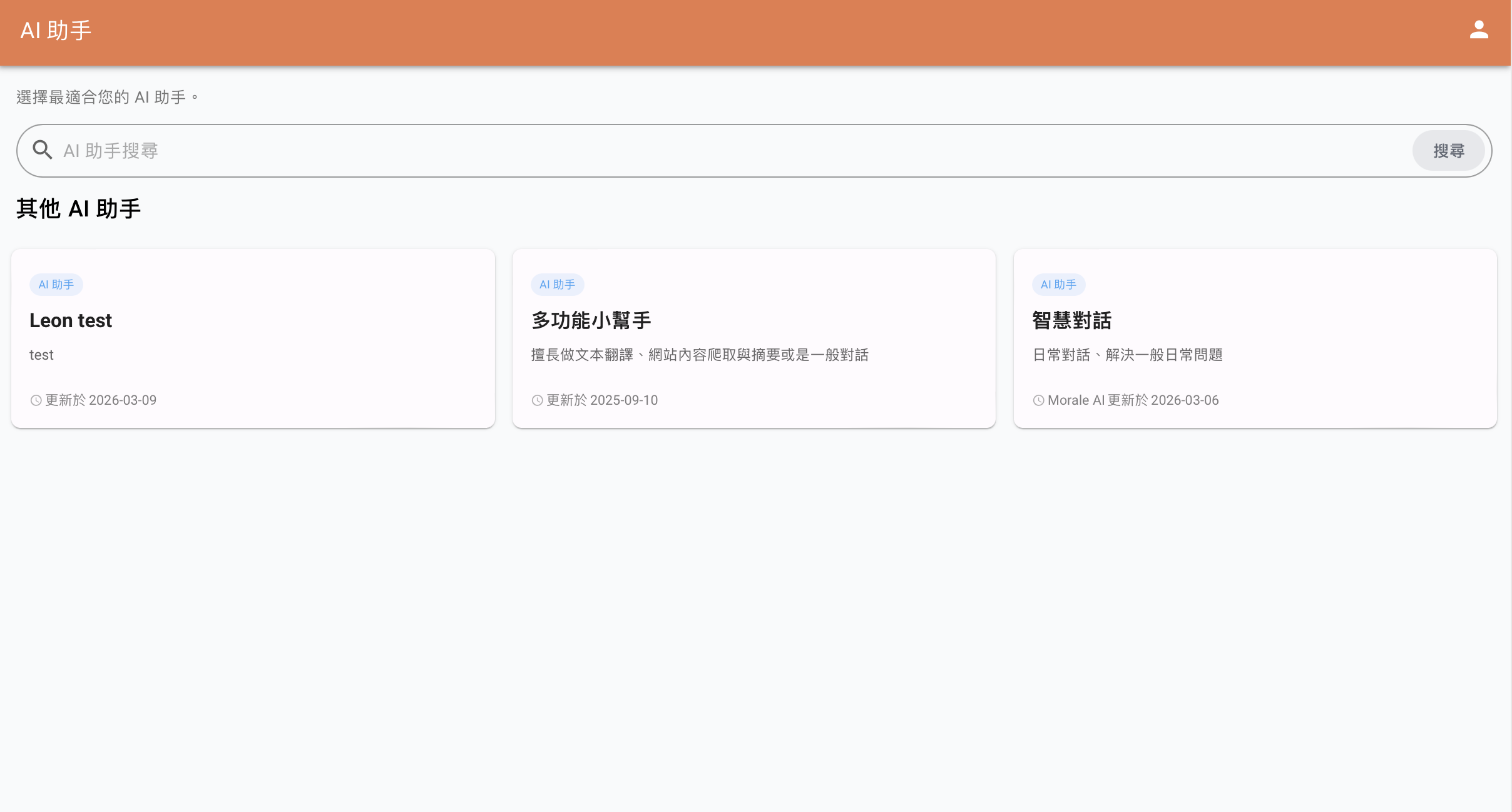
Account & Team Management
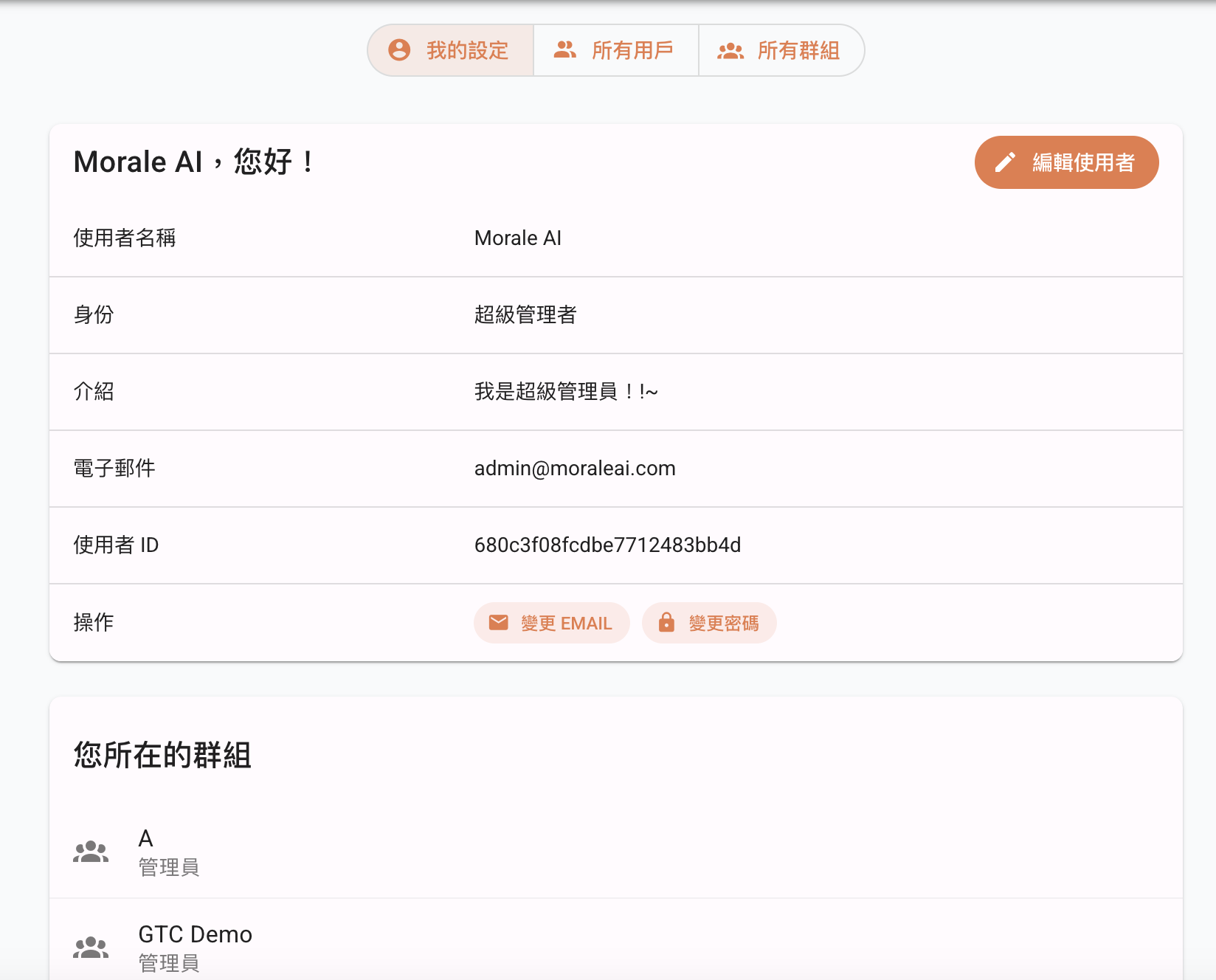
Go to My Settings on the top navigation bar and click "Edit User" to change the Username, User Introduction, Email, and Password for this account.
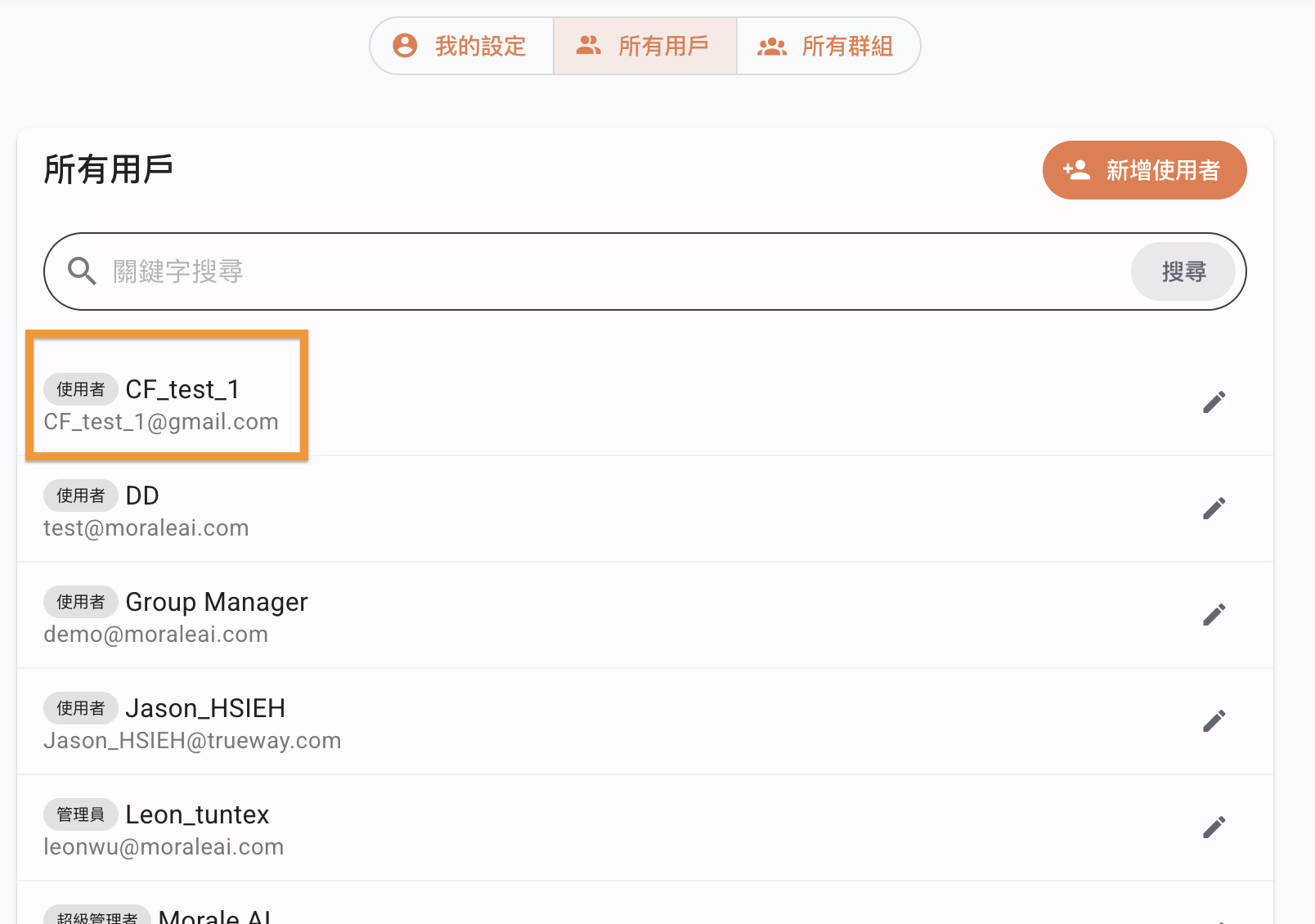
Go to All Users on the top navigation bar, where you can browse all users currently in the company. 'Super Administrators' and 'Administrators' can click on a Username to enter the user editing page.
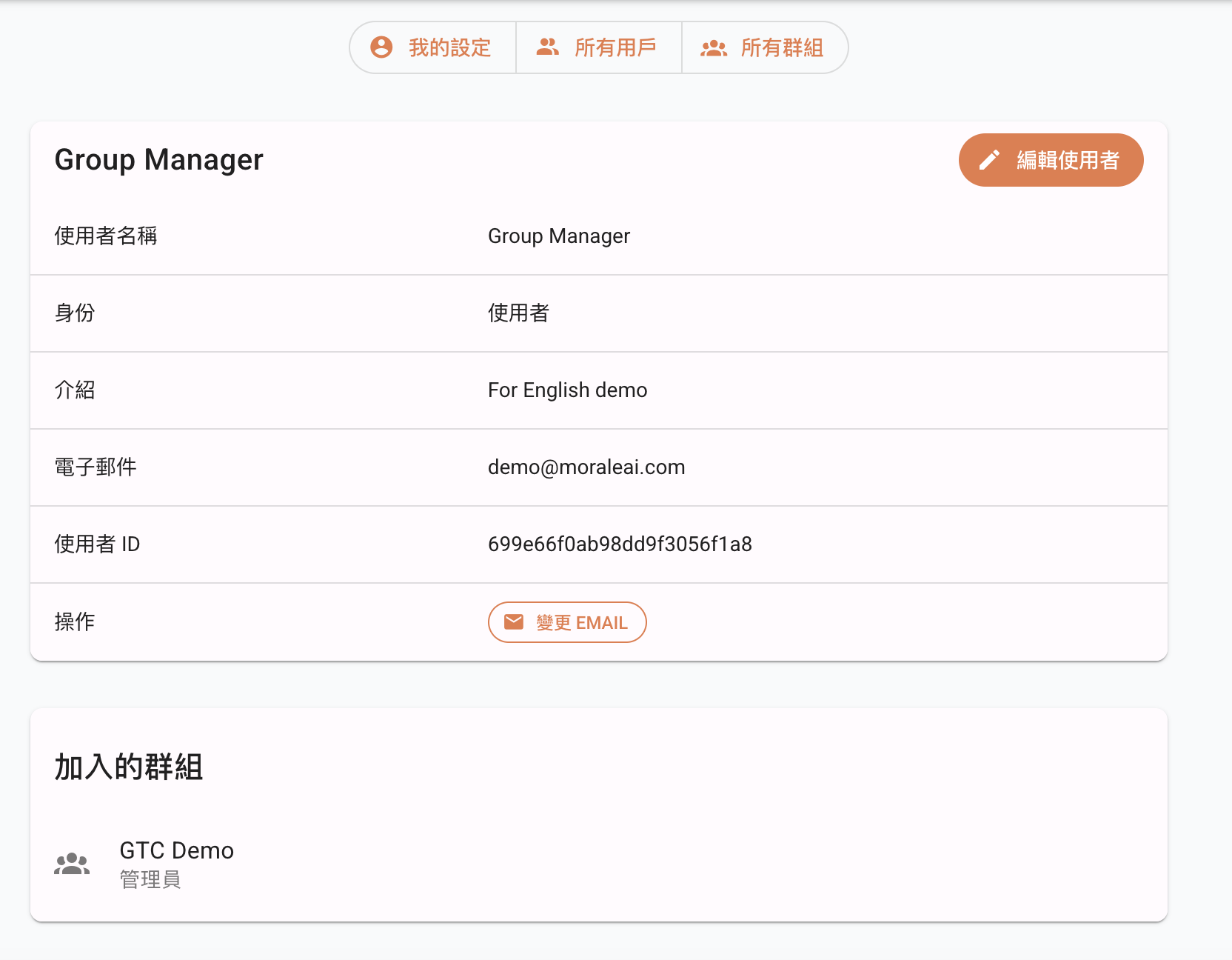
On the Edit User page, those with management permissions can edit the user's Name, Introduction, Email, and Joined Groups.
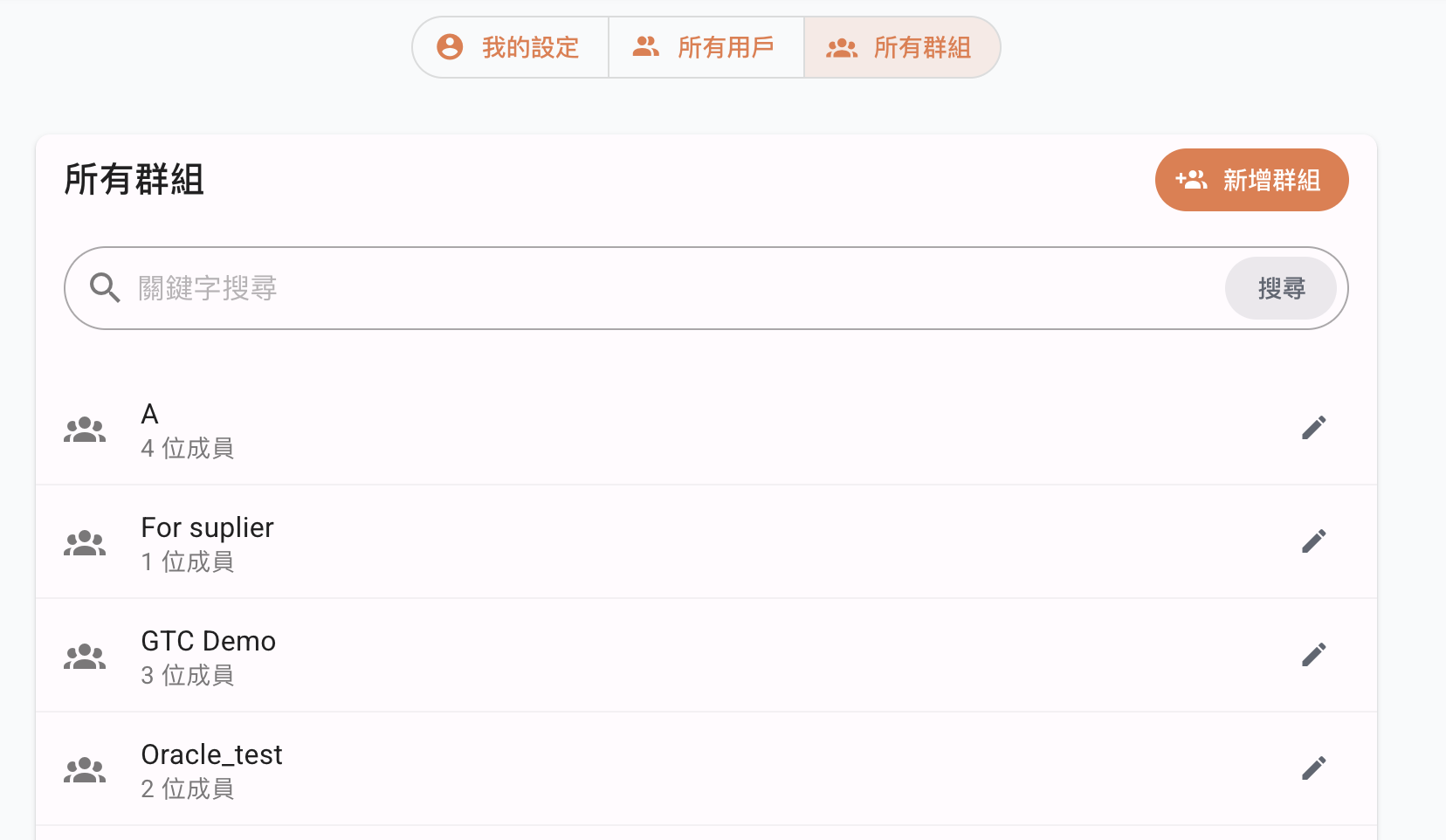
Go to All Groups on the top navigation bar, where you can browse all current groups in the company. 'Super Administrators' and 'Administrators' can click on a Group Name to enter the group editing page, or click Add Group to create a new one.
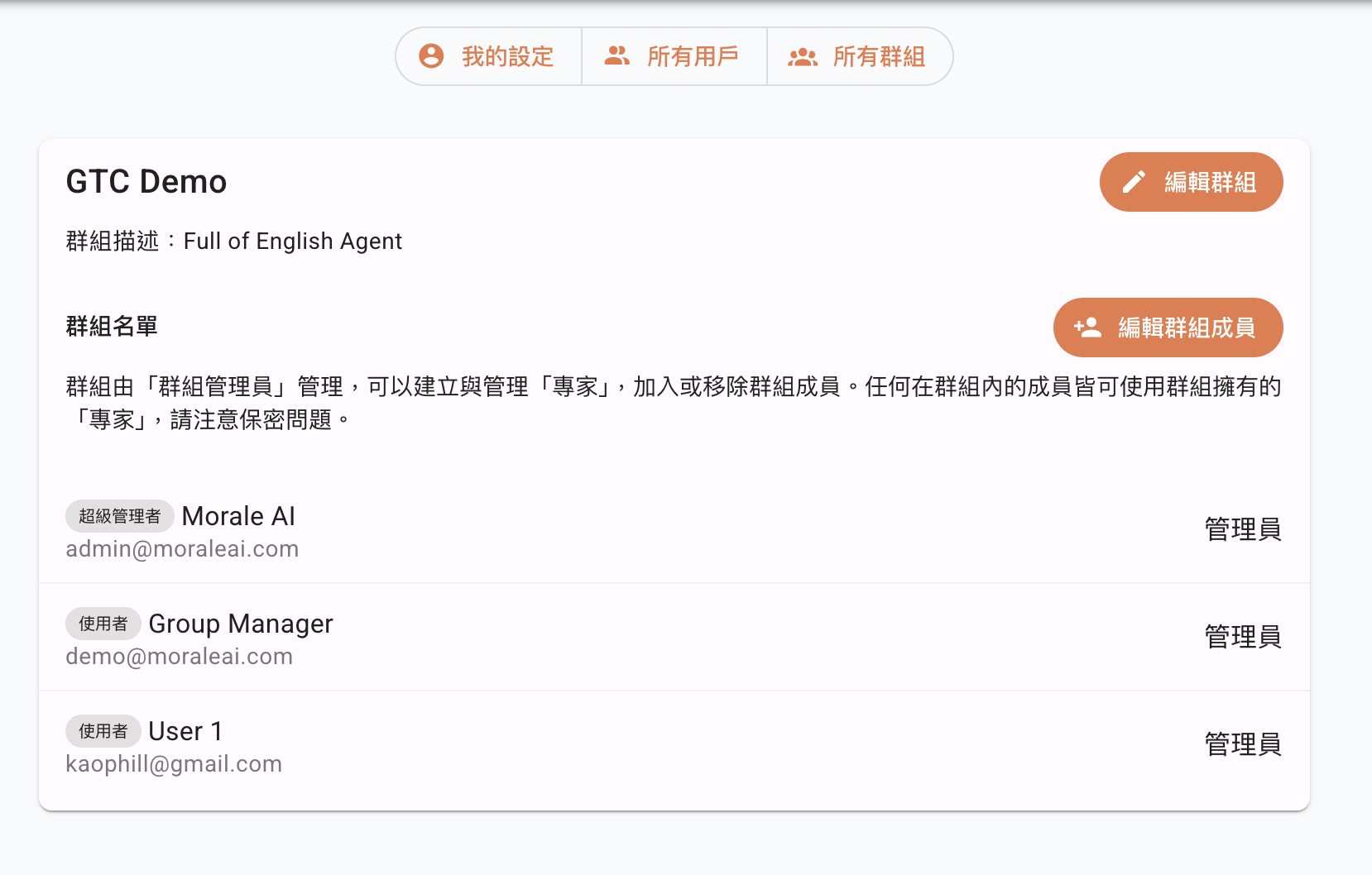
Click Edit Group Members to enter the group editing page.
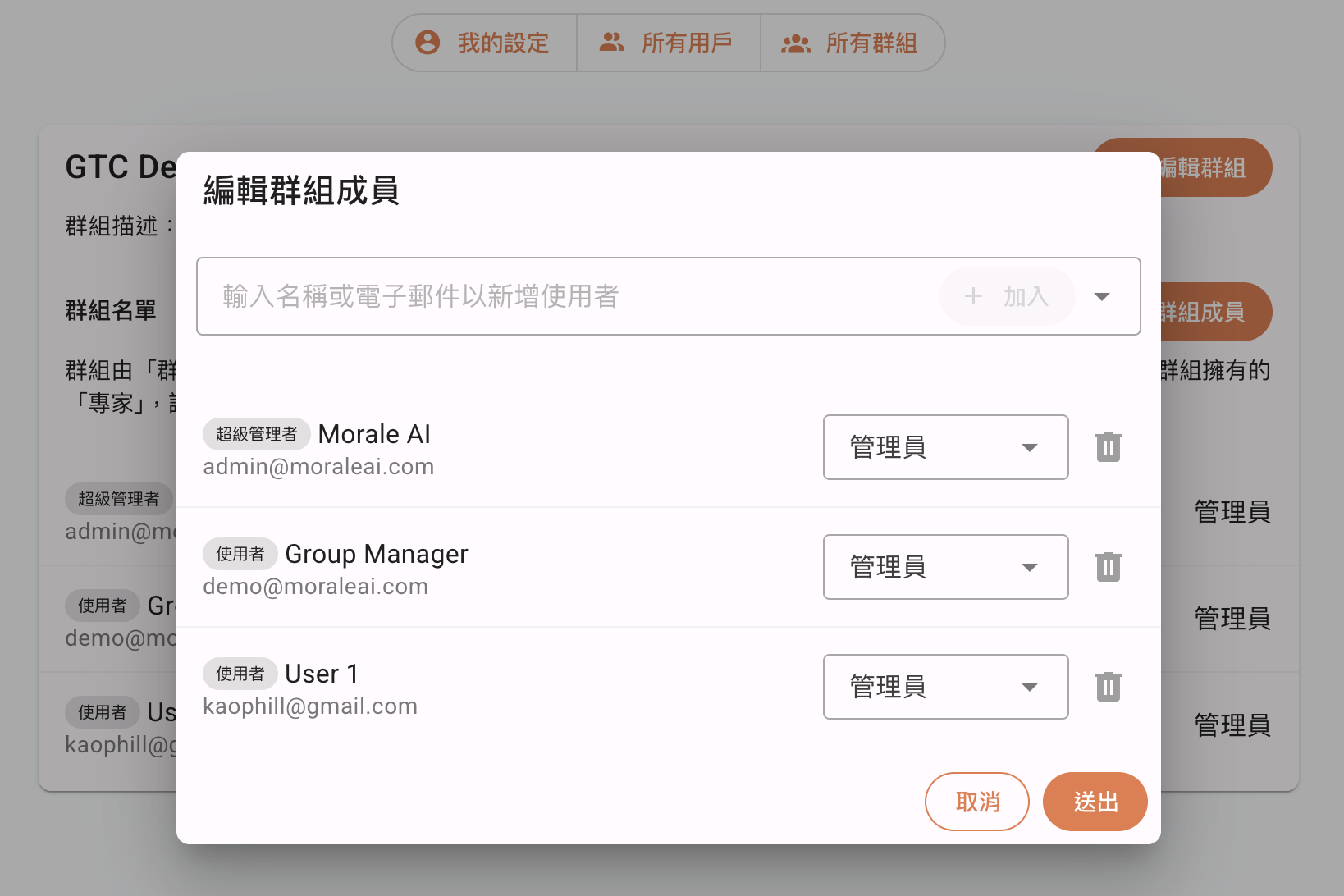
On the Edit Group page, you can Add or Remove group members and set individual permission levels for each member.
Usage Management
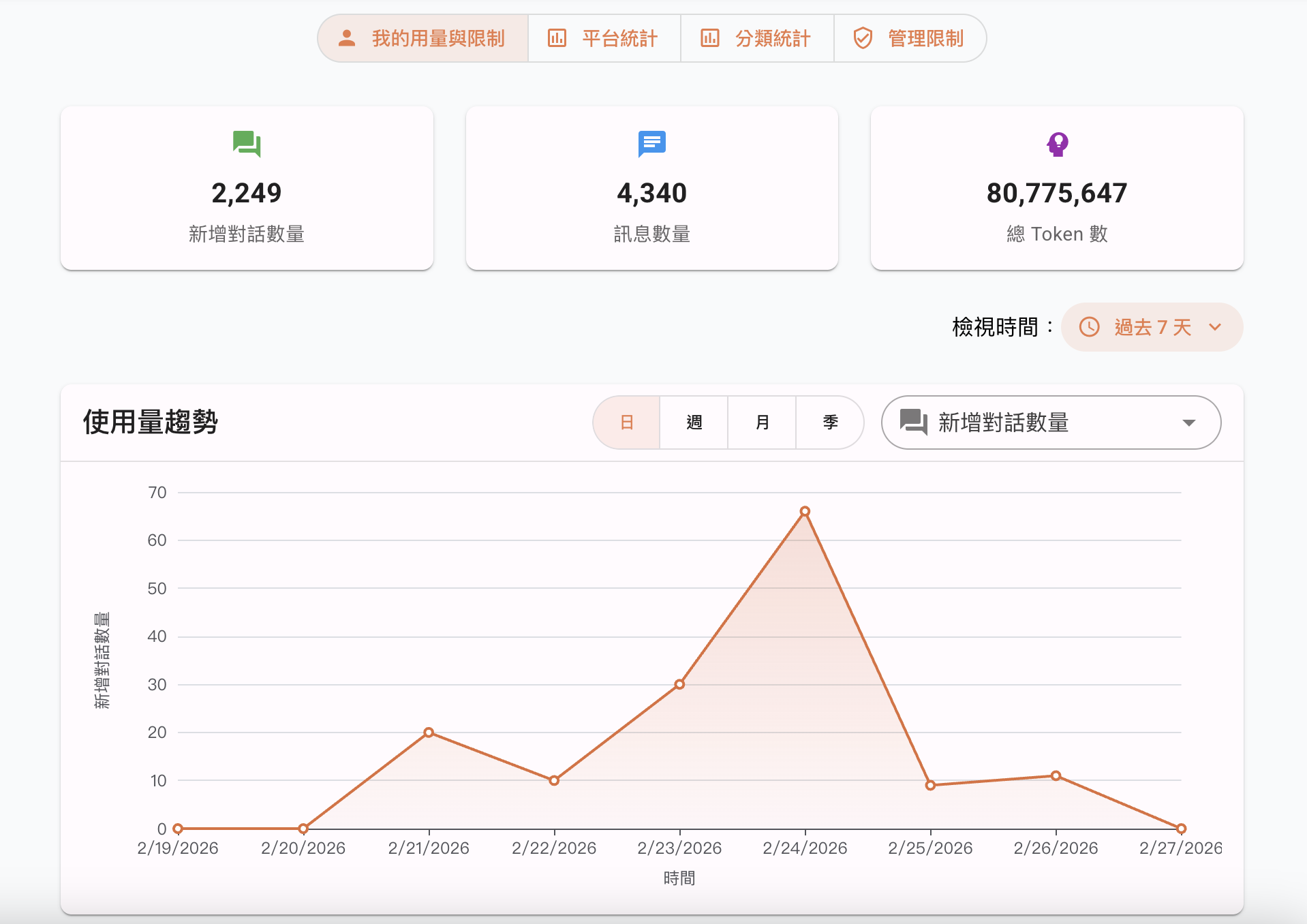
Go to My Usage & Limits on the top navigation bar. Here you can view the detailed usage history of this account, including: number of new chats, number of messages, total tokens, input tokens, output tokens, number of uploaded files, and login count. You can also filter the display by different time ranges.
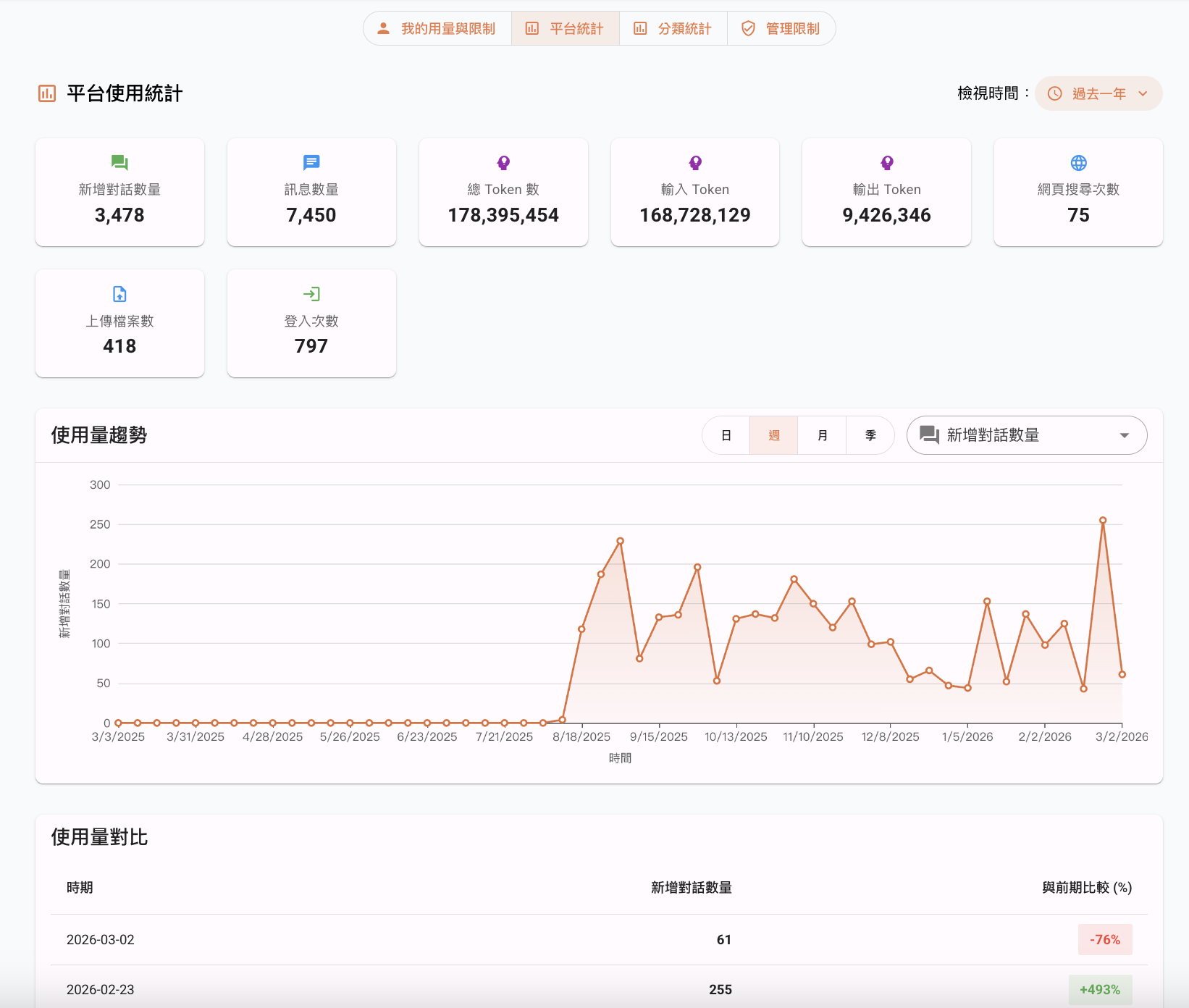
Go to Platform Statistics on the top navigation bar. Administrators and Super Administrators can monitor the total usage of the platform, including the number of new chats, number of messages, input tokens, output tokens, total tokens, number of uploaded files, web search count, and login count over any time period.
Go to Category Statistics on the top navigation bar. Administrators and Super Administrators can separately view the usage status for Users, Groups, and AI Assistants over any time period, displayed as bar charts at the top.
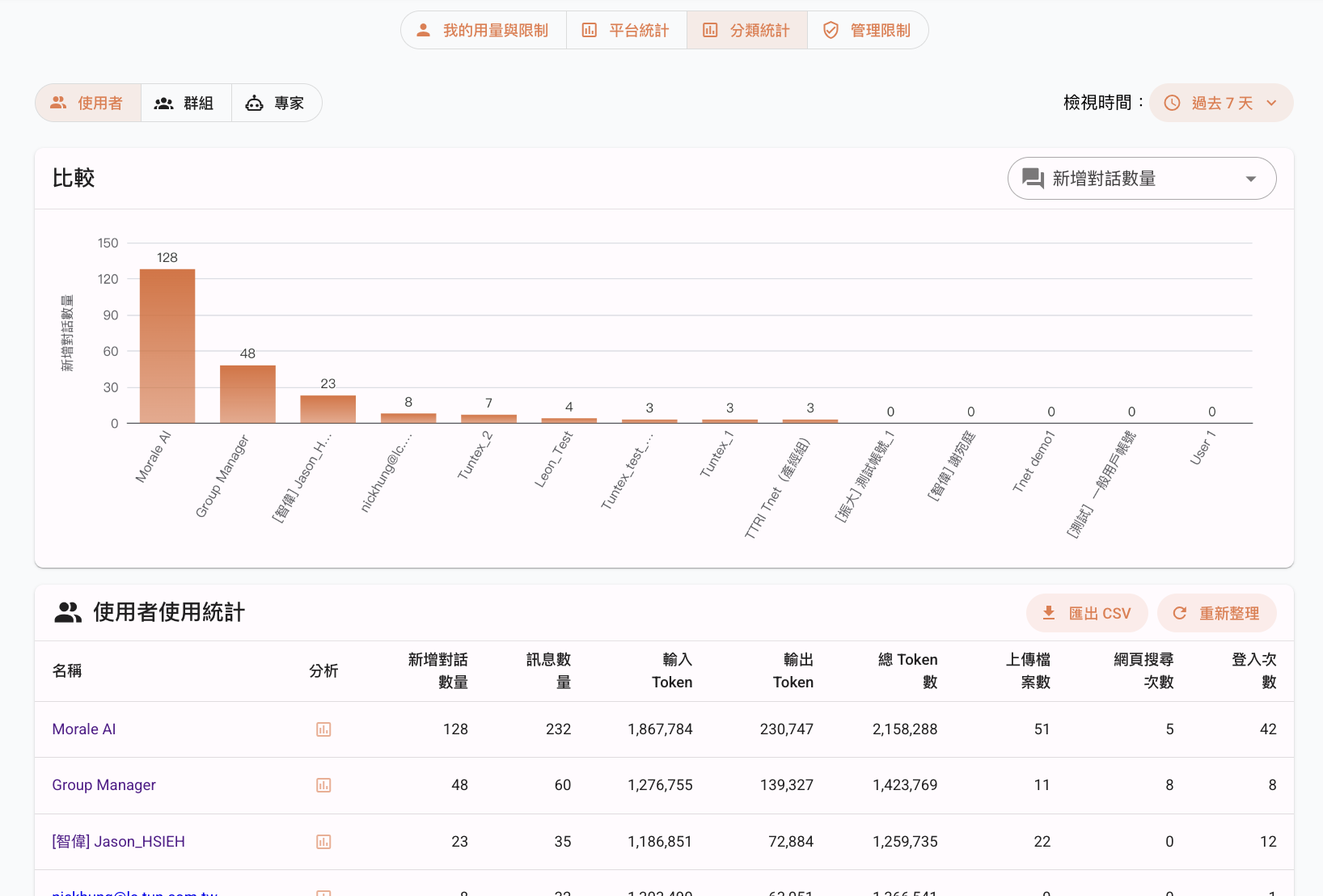
Users: Can view each user's number of new chats, number of messages, input tokens, output tokens, total tokens, number of uploaded files, web search count, and login count.
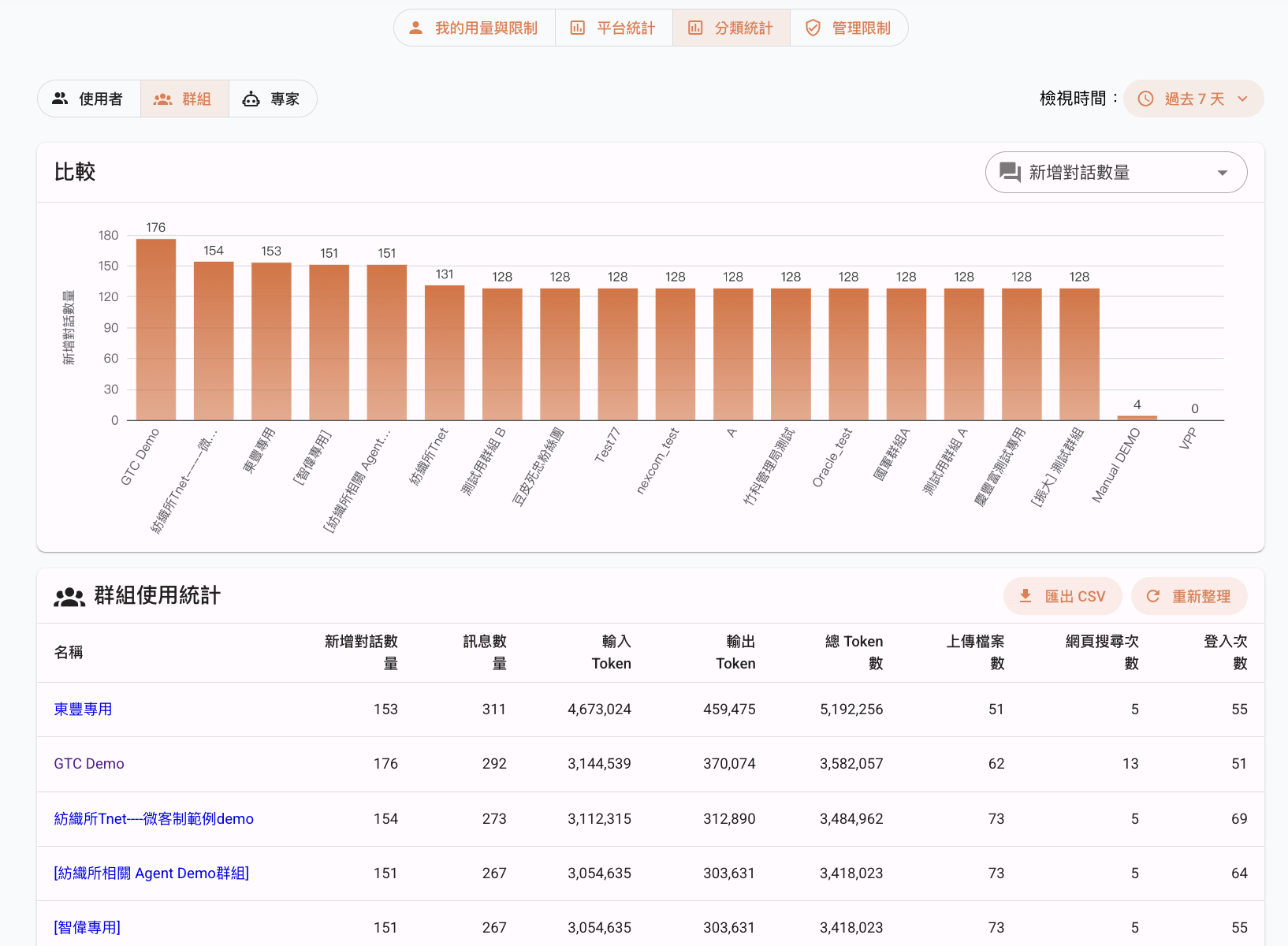
Groups: Can view each group's number of new chats, number of messages, input tokens, output tokens, total tokens, number of uploaded files, web search count, and login count.
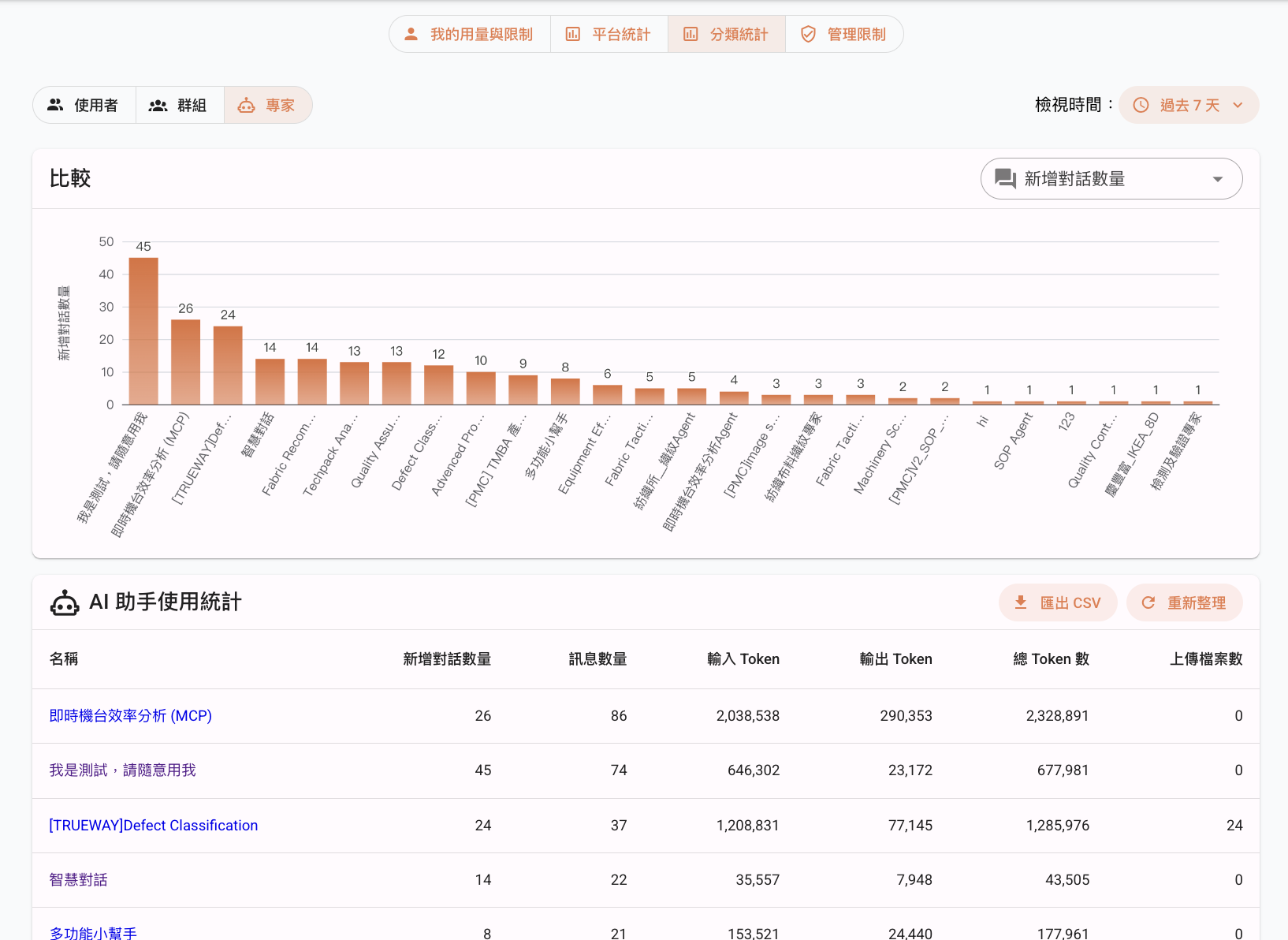
AI Assistants: Can view the usage of each AI assistant, including: number of new chats, number of messages, total tokens, input tokens, output tokens, and number of uploaded files.
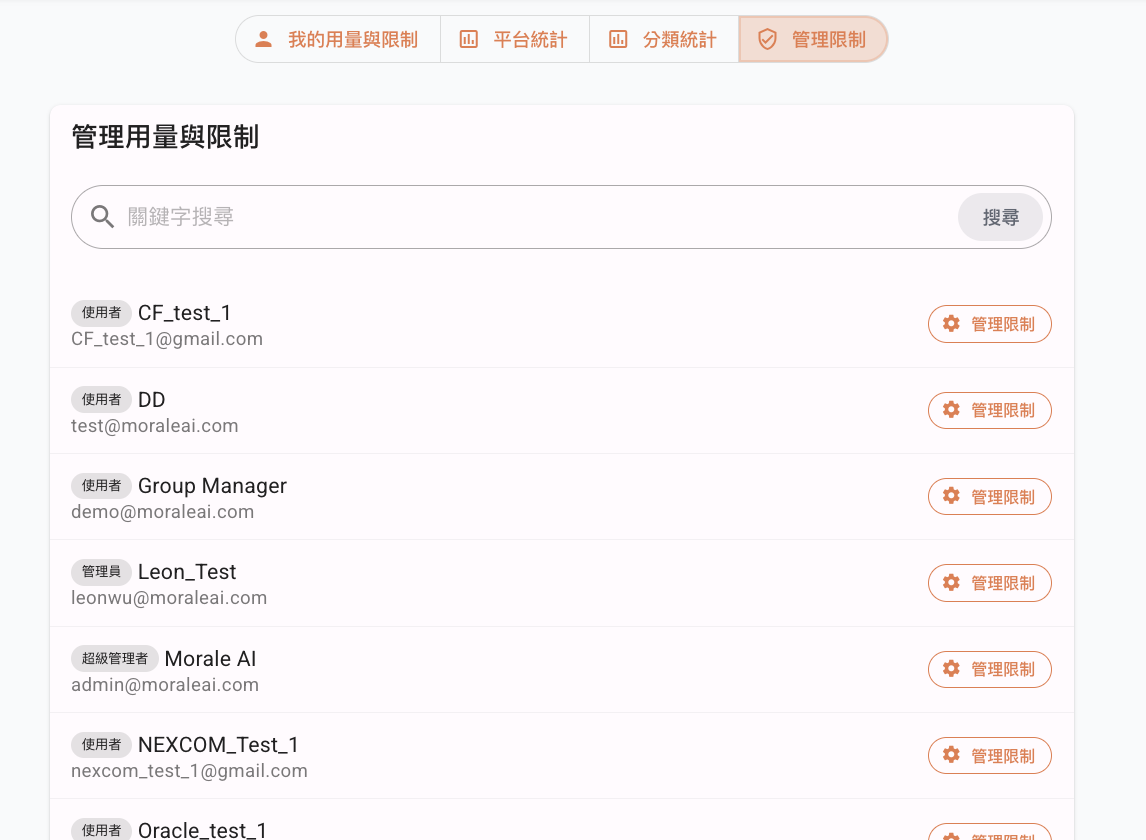
Go to Management Limits on the top navigation bar. Super Administrators can set usage limits for individual users.
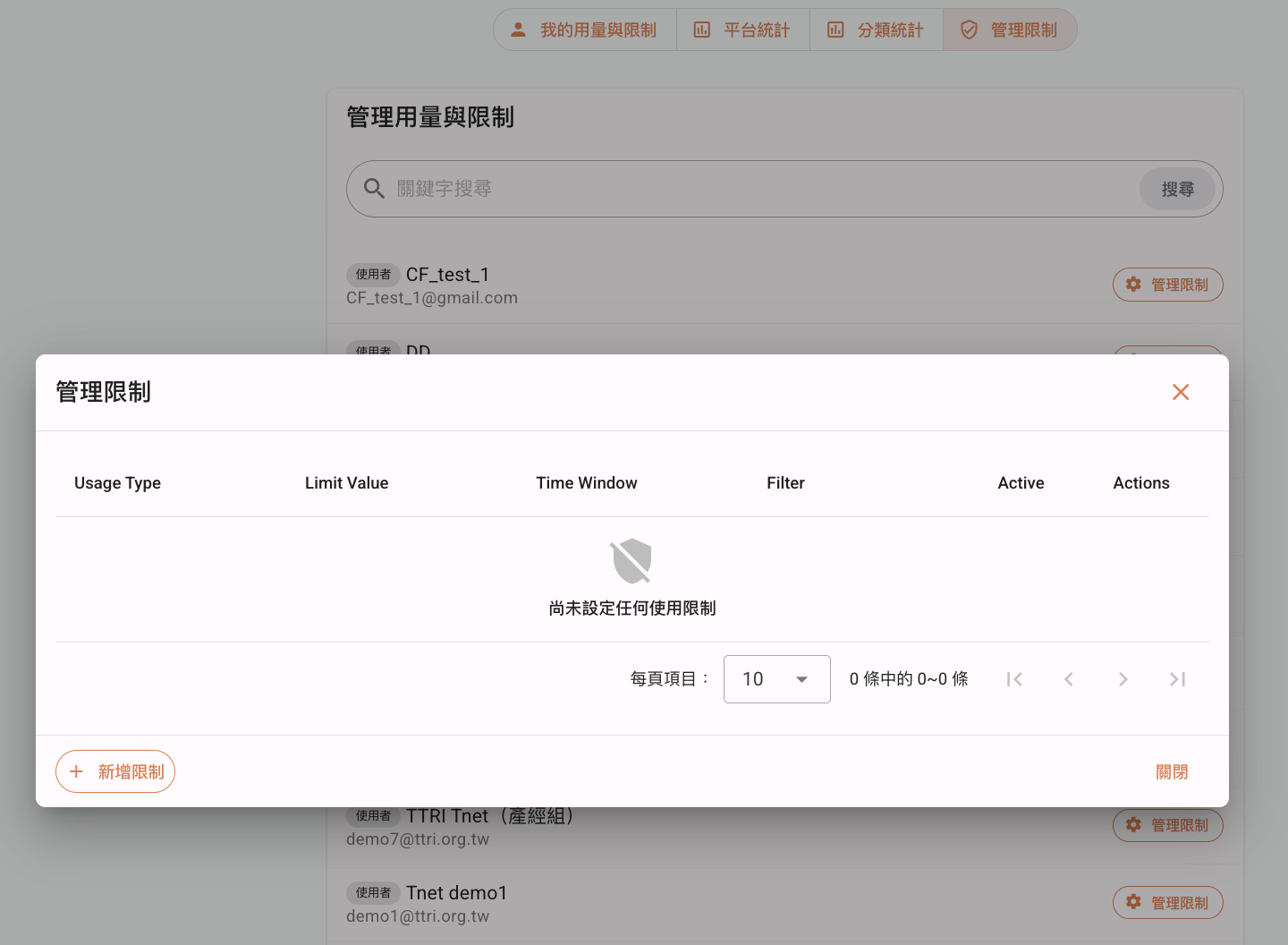
Click the Manage Limits button to the right of a username to add, edit, or delete usage limits.
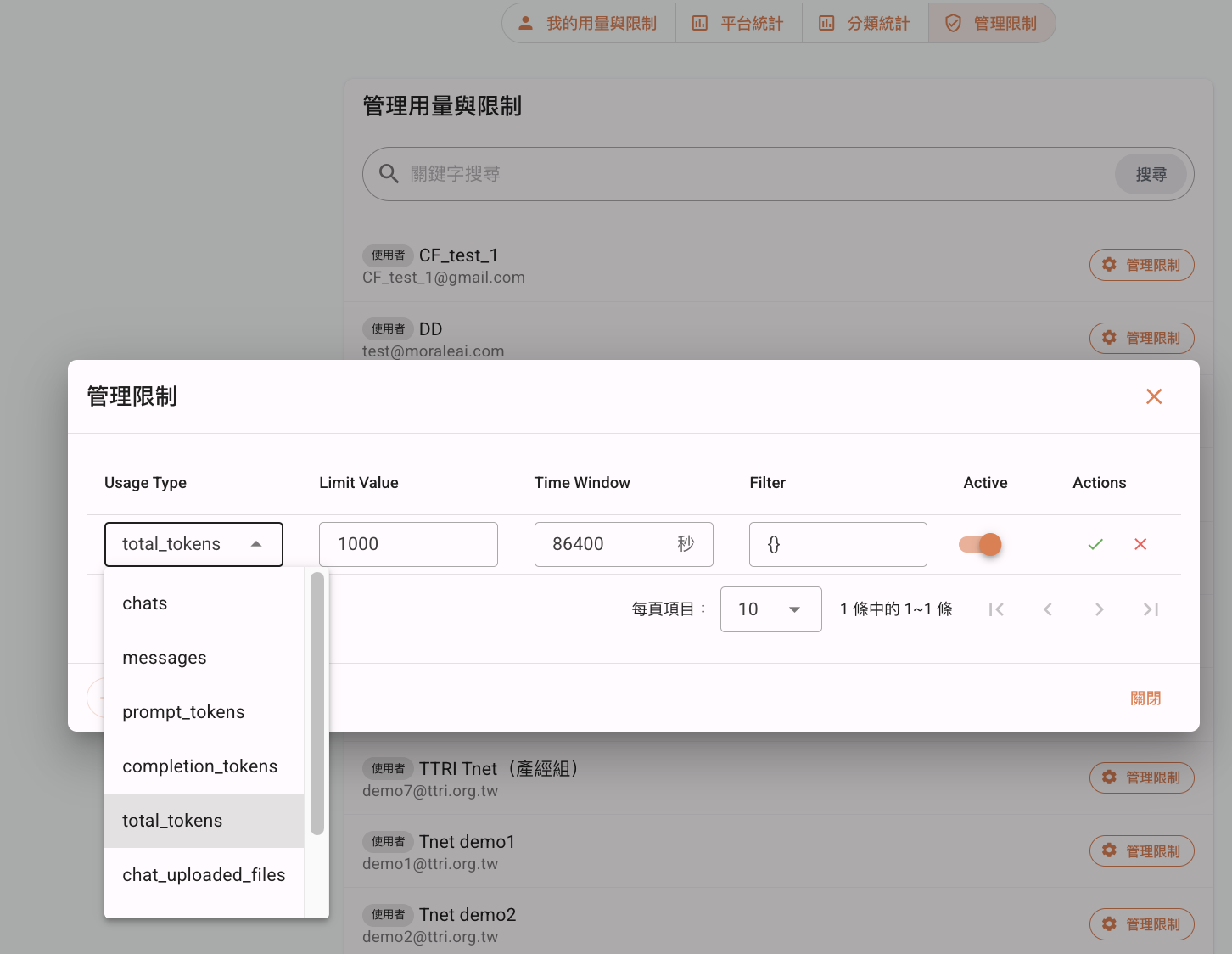
Introduction to Limit Settings: Usage Type: The restricted item. Includes: Chats, messages, prompt tokens, completion tokens, total tokens, chat upload files, chat web searched, user logins. Limit Value: The numeric limit for the selected item. Time Window: The refresh period for the limit. Active: Turn the limit on or off.
Example:
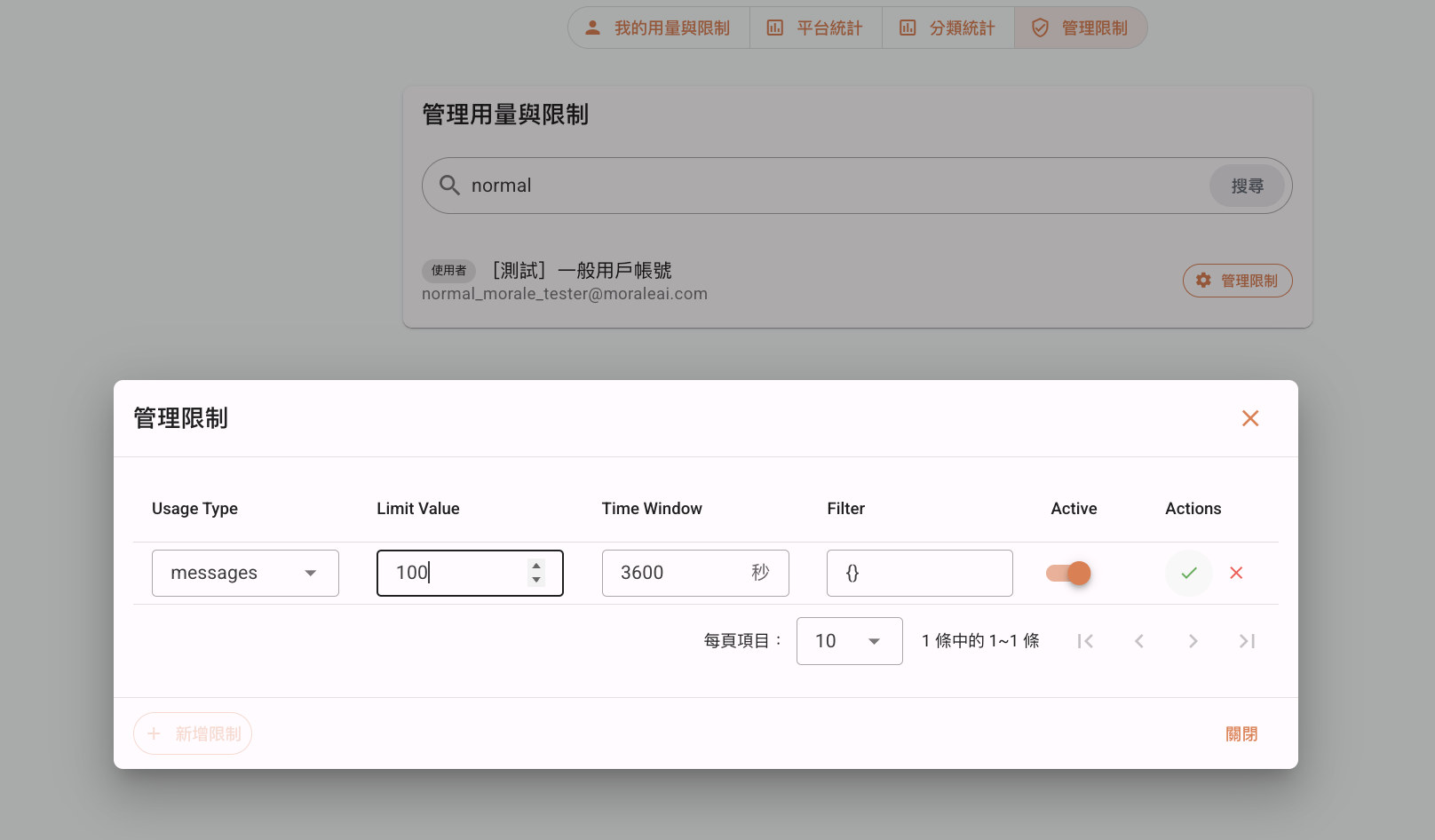
This limit means: The user can send up to 100 messages to the AI assistant every 3600 seconds.
Permission Management Levels
The platform provides comprehensive permission management, categorizing accounts into three levels with different access rights.
| Account Type | User Management | Group Management | Usage Management | Knowledge Base | AI Assistant |
|---|---|---|---|---|---|
| Super Administrator | Can add/delete users and edit all user names and introductions. | Can add/delete groups and edit all group names, introductions, member lists, and their permissions. | 1. Can view Platform Statistics (monitor total platform usage) 2. Category Statistics (view usage by Users, Groups, and AI Assistants) 3. Can set usage limits for individual users. | Can add, edit, and browse existing knowledge bases. | Can add and edit AI assistants. |
| Administrator | Can add/delete users and edit all user names and introductions. | Can add/delete groups and edit all group names, introductions, member lists, and their permissions. | 1. Can view Platform Statistics (monitor total platform usage) 2. Category Statistics (view usage by Users, Groups, and AI Assistants) | Can add, edit, and browse existing knowledge bases. | Can add and edit AI assistants. |
| General User | Can only view all user names and introductions. | Can only view all group names, introductions, and their member lists. | Can only view the usage and limits for their own account. | No permissions | Can only use existing AI assistants. |