Workflow Settings
In the chat window, users can upload files, enable web search functionality, and select knowledge bases to use (Note: the actual available features depend on the workflow settings).
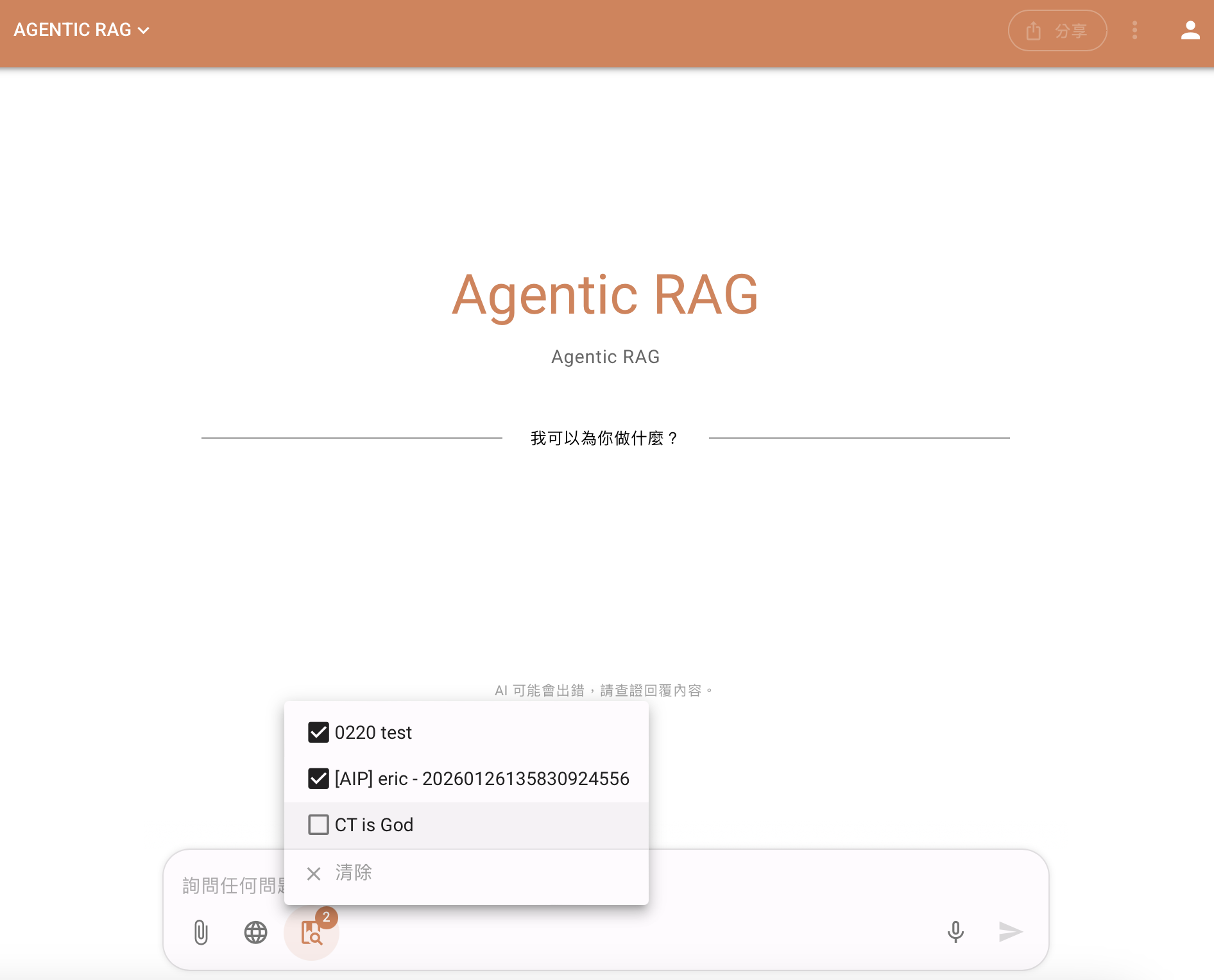
Users can check the knowledge bases they want to use according to their needs. Only the selected knowledge bases will be used as knowledge sources for the Agent during the Q&A. To add a new knowledge base to the selection list, it must be configured in the workflow.
Workflow (Administrator Tools)
-
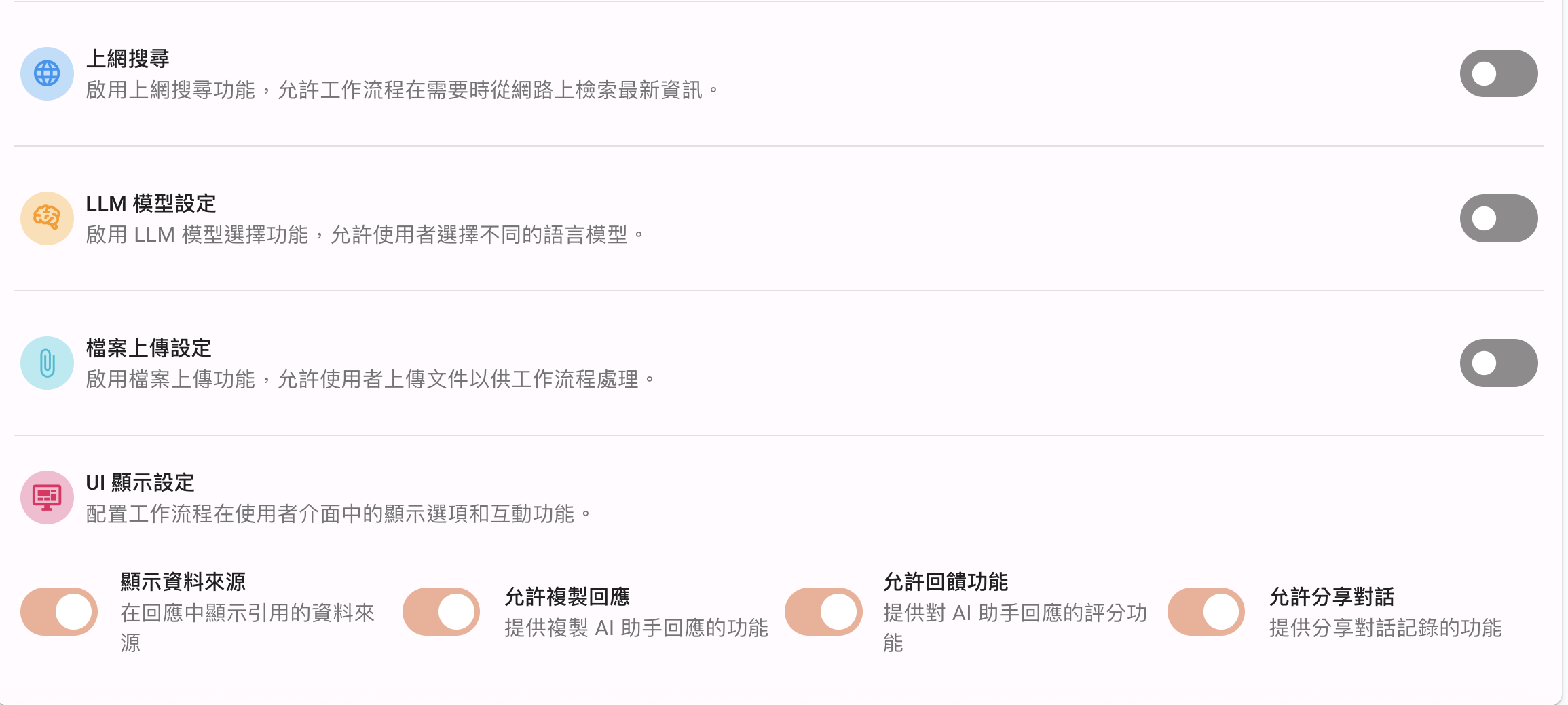
Web Search: Once enabled, the web search feature can be used in the chat window with the AI assistant.
-
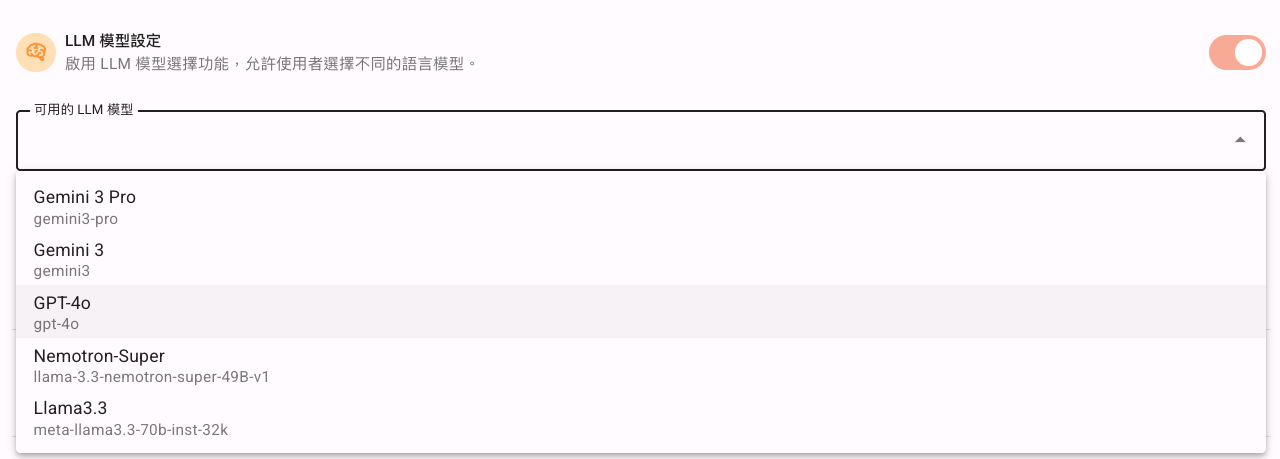
LLM Model Settings: Once enabled, you can choose different language models to answer in the chat window with the AI assistant.
-
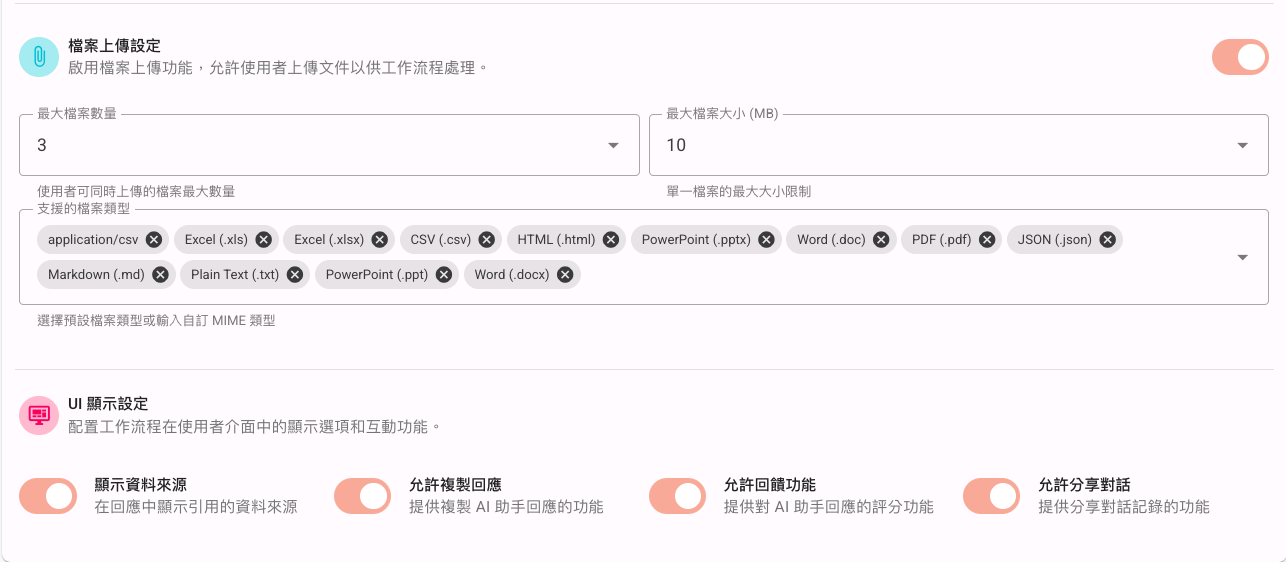
File Upload Settings: Once enabled, you can select the maximum number of files to upload, the upload limit for a single file, and the supported upload file formats.
-
UI Display Settings support the following four scenarios; you can freely choose to enable or disable each feature:
- Display Data Sources
- Allow Copying Responses
- Allow Feedback Function
- Allow Sharing Conversations
Knowledge Base
On the Knowledge Base page, click the Add Knowledge Base button in the upper right corner to enter the Add Knowledge Base page.
Click the Pencil icon in the upper right corner of an existing knowledge base to edit it.
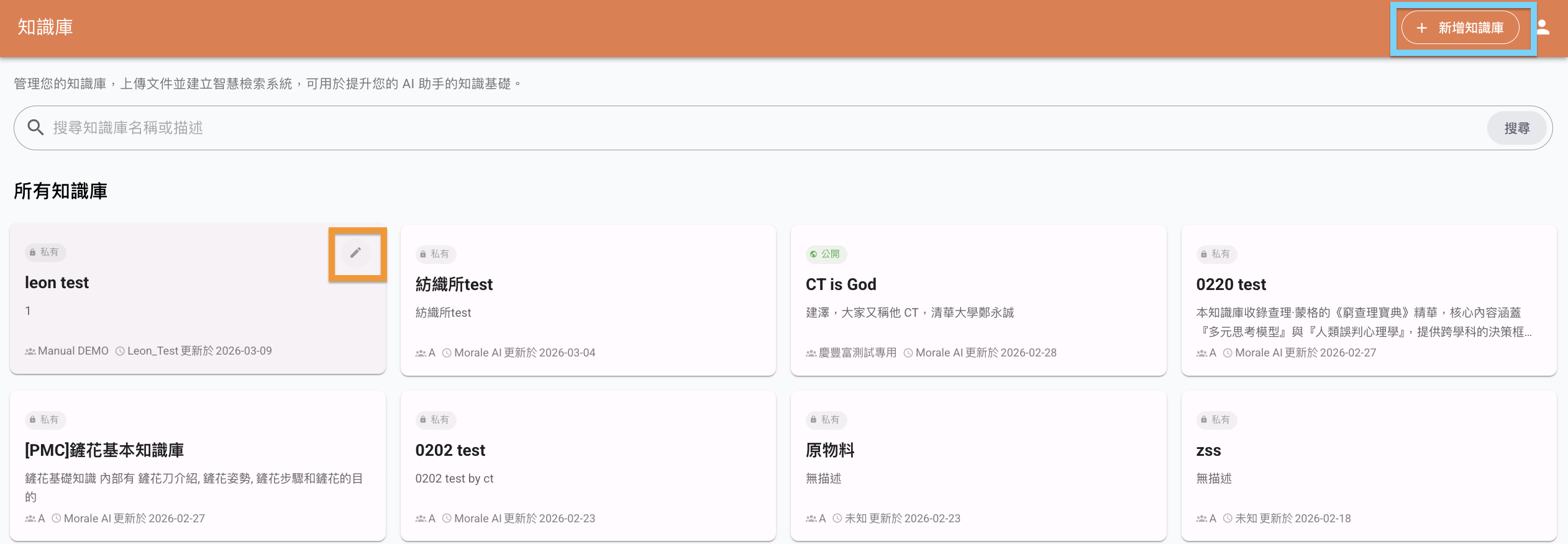
Add Knowledge Base
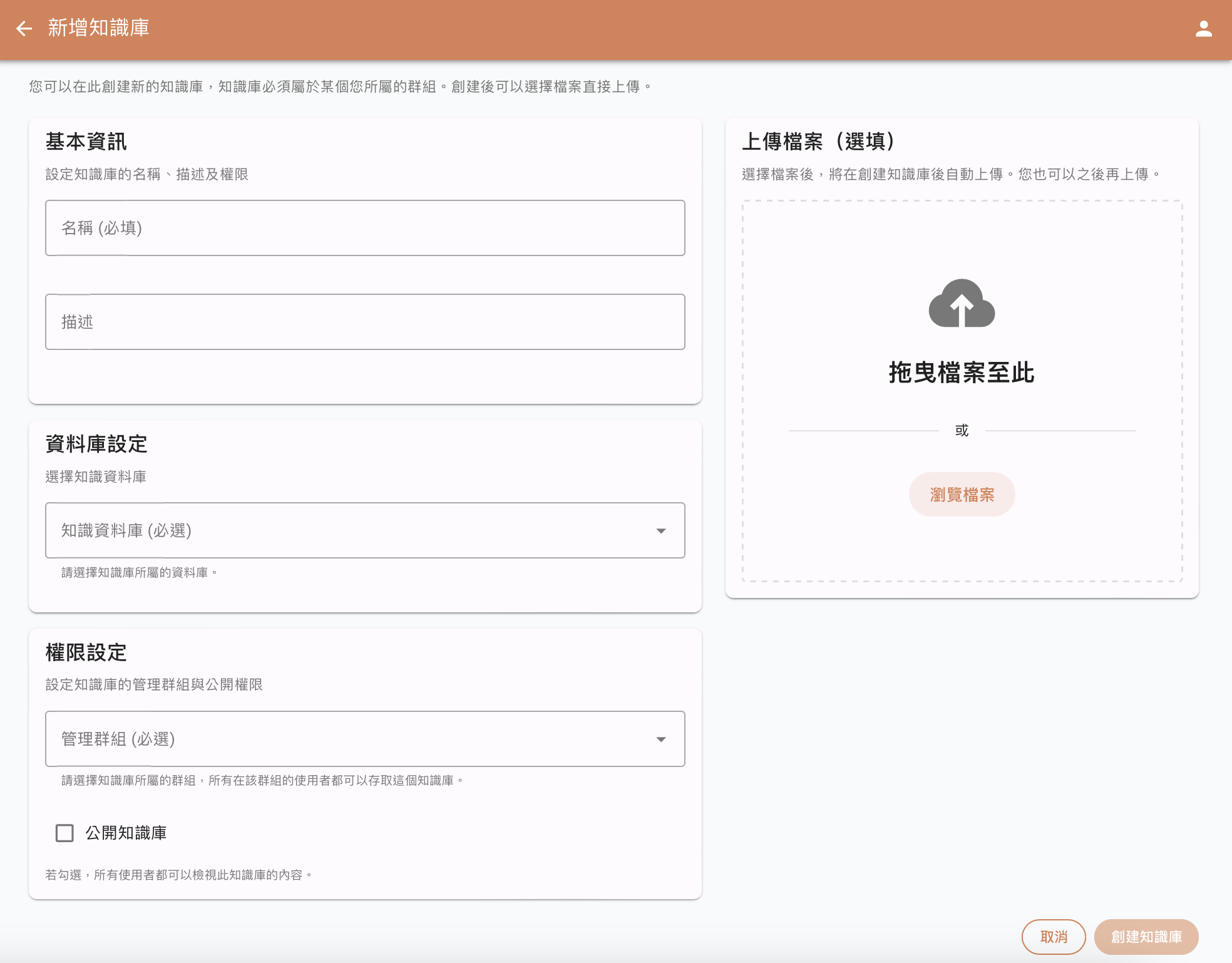
Basic Information: Enter the knowledge base name and description.
Database Settings: Select the database to which this knowledge base belongs.
Permission Settings: Select the groups that can access this knowledge base (group owners can manage, group users can read). Unselected groups cannot use this knowledge base.
Public Knowledge Base: Check "Public Knowledge Base" so other groups can also view and use the contents of this knowledge base.
Upload Files: Currently supported file formats include pdf, docx, pptx, xls, xlsx, txt, md, json; single file limit: 15MB.
Edit Existing Knowledge Base
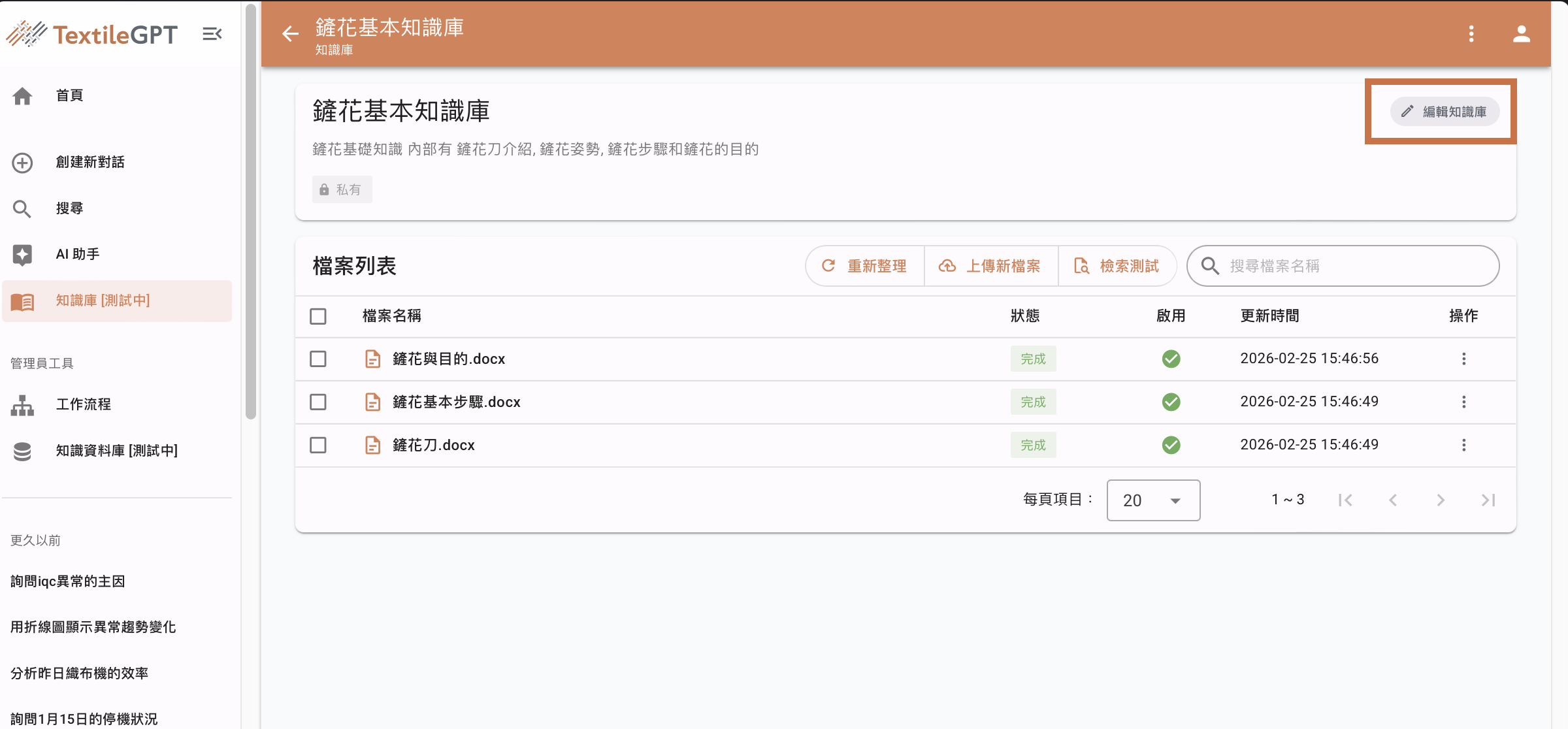
Click Edit Knowledge Base to modify the name and description of the knowledge base.
Click the File Name to view the contents of the file.
Click Upload New File to add a new file to this knowledge base.
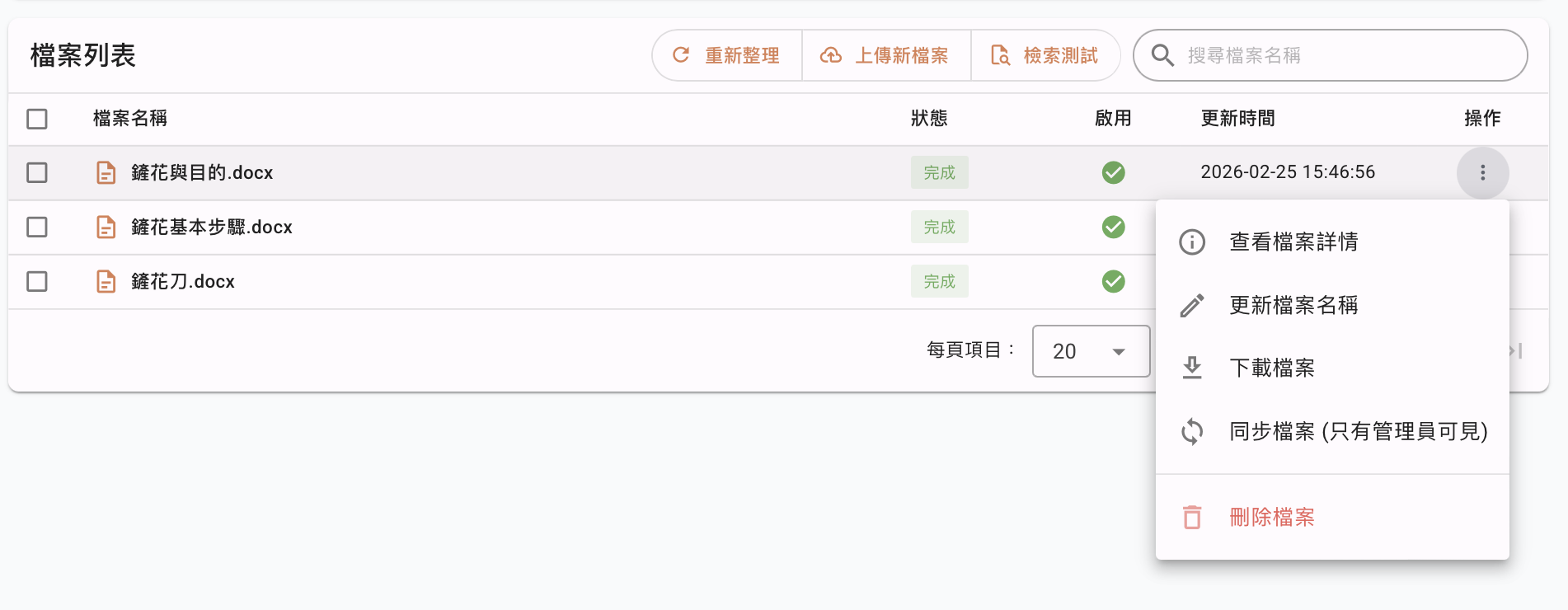
Click the ··· button under Actions to view the file, update the file name, download the file, or delete the file.